
A USB WiFi adapter that sits at two bars in Windows is almost always solvable without buying anything, and the cause is rarely the adapter being broken. The usual culprits are the dongle latching onto the slower 2.4GHz band, an outdated driver capping its speed, the unit being buried in a USB 2.0 port at the back of the case, or simple antenna placement. This guide works through the honest fixes in order, then flags the one situation where the adapter genuinely is too underpowered for the job and a stronger one earns its keep. If the weak signal shows up on every device rather than only this adapter, the broader WiFi only showing 2 bars fix covers the router-side causes.
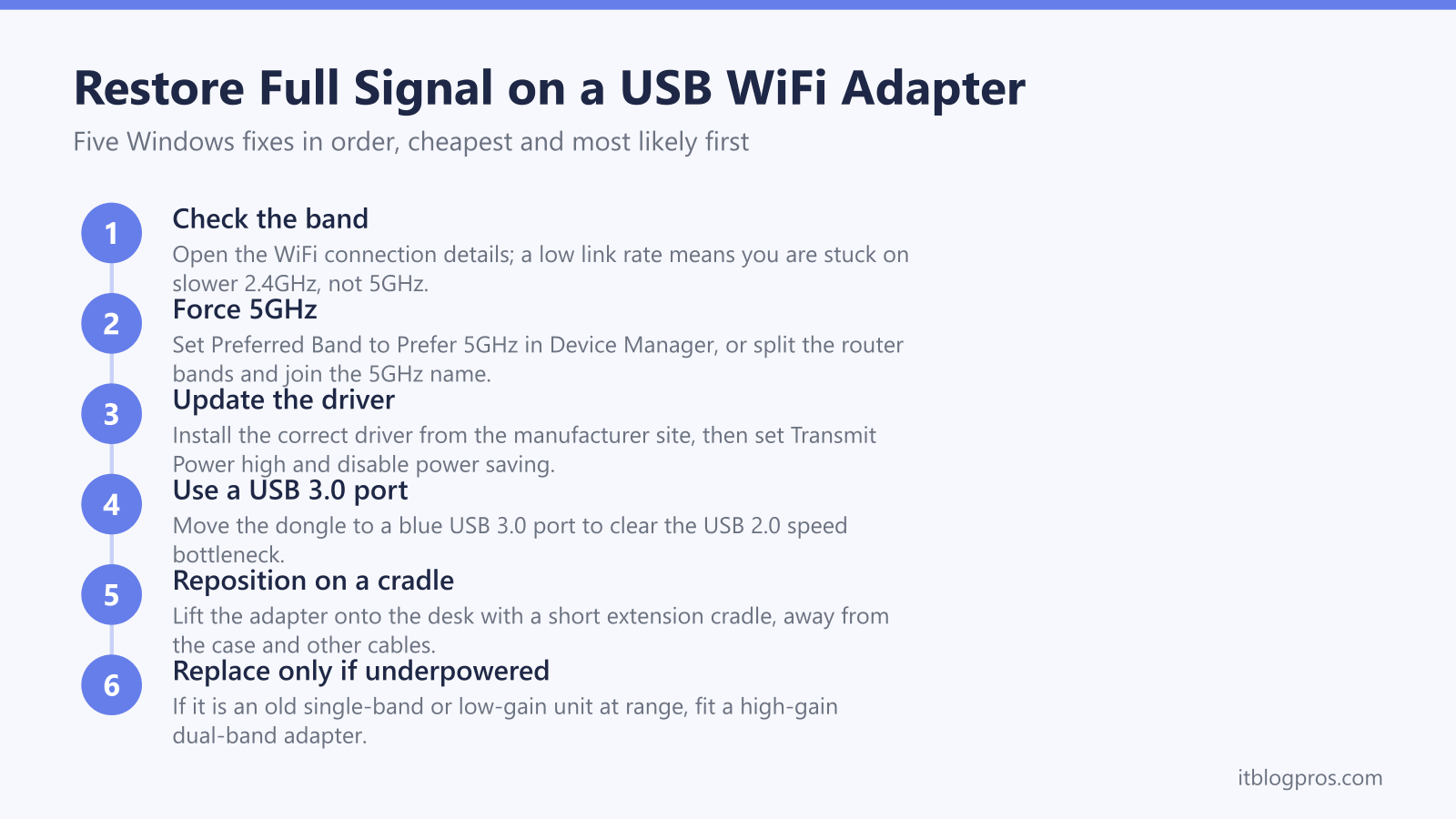
Two bars on a USB WiFi adapter in Windows points at a handful of fixable causes: the dongle connecting on 2.4GHz instead of 5GHz, an outdated driver, a USB 2.0 port bottleneck, or poor placement. Updating the driver, forcing the 5GHz band, moving the adapter to a USB 3.0 port on an extension cradle, and repositioning it usually restore full signal at no cost.
Key Takeaways
- Two bars most often means the adapter has connected on the longer-range 2.4GHz band rather than the faster 5GHz one, so the bar count reflects band choice, not a fault.
- Updating the driver straight from the manufacturer site, not a third-party updater, fixes a surprising share of weak-signal and capped-speed cases.
- A USB 2.0 port caps throughput at a real-world figure well under its 480Mbps ceiling, so an AC1300-class adapter belongs in a blue USB 3.0 port.
- Moving the dongle out of the case on a short USB extension cradle, away from metal and other USB devices, often adds a bar or two on its own.
- Replacement is only worth it when the adapter is an old single-band or low-gain unit working at range, where a high-gain dual-band model is the genuine fix.
Two bars usually means the adapter is on 2.4GHz, not 5GHz
The first thing to rule out is band choice, because it explains most two-bar readings and costs nothing to fix. A dual-band adapter can join the 2.4GHz band or the 5GHz band, and the two behave very differently. The 2.4GHz band uses a longer wavelength that travels further and passes through walls more easily, so it holds a connection across the house but at lower speeds. The 5GHz band is faster but its shorter wavelength is absorbed and reflected by walls and distance, so it fades quickly as you move away from the router.
When Windows shows two bars, the adapter has often settled onto whichever band it found first, and on many networks that is 2.4GHz. Band steering, the router feature meant to push devices onto the better band, is unreliable in practice and frequently leaves an adapter parked on the slower one. Confirm which band you are on before changing anything else: in Windows, open the WiFi network details and check the connection. A low number such as 65 or 144 Mbps usually indicates 2.4GHz, while figures in the hundreds point at 5GHz.
Forcing the 5GHz band restores speed when the signal is strong enough
If the adapter is close enough to the router for a clean 5GHz link, two reliable methods push it onto that band. The first works inside Windows. Open Device Manager, expand Network adapters, double-click the wireless adapter, open the Advanced tab, select the Preferred Band property and set it to Prefer 5GHz, then click OK. The connection may drop for a second while the change applies. Note that this is a preference, not a guarantee, and not every adapter exposes the setting.
The more dependable method is on the router. Splitting the bands into two separate network names takes control away from band steering entirely. In the router admin pages, turn off Smart Connect or band steering, then give the 2.4GHz and 5GHz bands distinct names, for example by adding -5G to one of them. Reconnect the adapter to the 5GHz name and it will stay there. One honest caveat applies: forcing 5GHz only helps where the signal reaches. If the PC is far from the router or several walls away, 5GHz may actually show fewer bars than 2.4GHz, and the longer-range band is the better choice in that spot.
Outdated drivers quietly cap signal and speed
A stale or generic driver is one of the most common reasons an adapter underperforms, and Windows Update often installs a basic version that does not unlock the hardware fully. The fix is to install the correct driver straight from the manufacturer site for the exact model, rather than trusting a third-party driver updater, which can install the wrong package.
For a clean result, open Device Manager, right-click the wireless adapter and uninstall it, ticking the box to remove the driver software if offered, then restart and install the freshly downloaded driver. While in the adapter properties it is also worth two quick tweaks on the Advanced tab: set Transmit Power to its highest value, and on the Power Management tab untick the option that lets Windows turn the device off to save power. Both settings can throttle a USB adapter into a weaker connection than the hardware is capable of.
A USB 2.0 port and poor placement throttle the signal
Where the adapter physically plugs in matters more than most people expect. A USB 2.0 port has a theoretical ceiling of 480Mbps and a real-world figure well below that once overhead is accounted for, so an AC1300-class adapter rated for 867Mbps on 5GHz is bottlenecked by the port itself. USB 2.0 ports are usually black inside; USB 3.0 ports are typically blue and marked SS. Moving the dongle to a blue port removes that cap.
Placement is the other half. A small adapter pushed into a port at the back of a desktop sits behind a metal case, low to the floor and surrounded by other cables, all of which block the signal. A short USB 3.0 extension cradle lets you lift the adapter onto the desk, clear of the case and away from other USB 3.0 devices and unshielded cables, which are known to interfere with 2.4GHz reception. Repositioning the adapter this way, with line of sight toward the router, frequently adds a bar or two on its own. For the wider picture on what a low bar count means, see the guide on WiFi only showing 2 bars and how to fix it in five minutes.
When it is worth replacing the adapter
Work through the fixes above first, because most two-bar cases are band choice, drivers, port or placement, and a new adapter will not help any of those. Replacement is only the honest answer in one situation: the adapter itself is genuinely underpowered for where it has to work. That means an old single-band 2.4GHz-only dongle, or a tiny low-gain nano adapter being asked to hold a link across a large room or through walls, where no software tweak can give it reach it never had.
In that case a high-gain dual-band adapter is the right upgrade rather than a luxury. The TP-Link Archer T3U Plus is the sensible pick here. It is an AC1300 dual-band model with two external high-gain antennas that meaningfully improve reception over a flush nano dongle, and it uses a USB 3.0 connection so it is not held back by the interface. The external antennas and the ability to sit it on a cradle, rather than flush against the case, are exactly what a weak-signal situation needs. If the real problem is whole-home coverage rather than one PC, an adapter is the wrong tool and the choice between an extender, a mesh or a new router is worth reading first.
