
Windows 11 WiFi problems come from a short list of repeat offenders: a power-saving setting that switches the adapter off behind your back, a driver broken by a Windows Update, a stale saved network, or a clogged network stack. The ten fixes below run as a ladder, starting with 30-second checks and ending with the one tool that carries a real cost. Work down in order and stop when the connection holds. Every Settings path quoted here matches current Windows 11 builds, so the menus should read exactly as written.
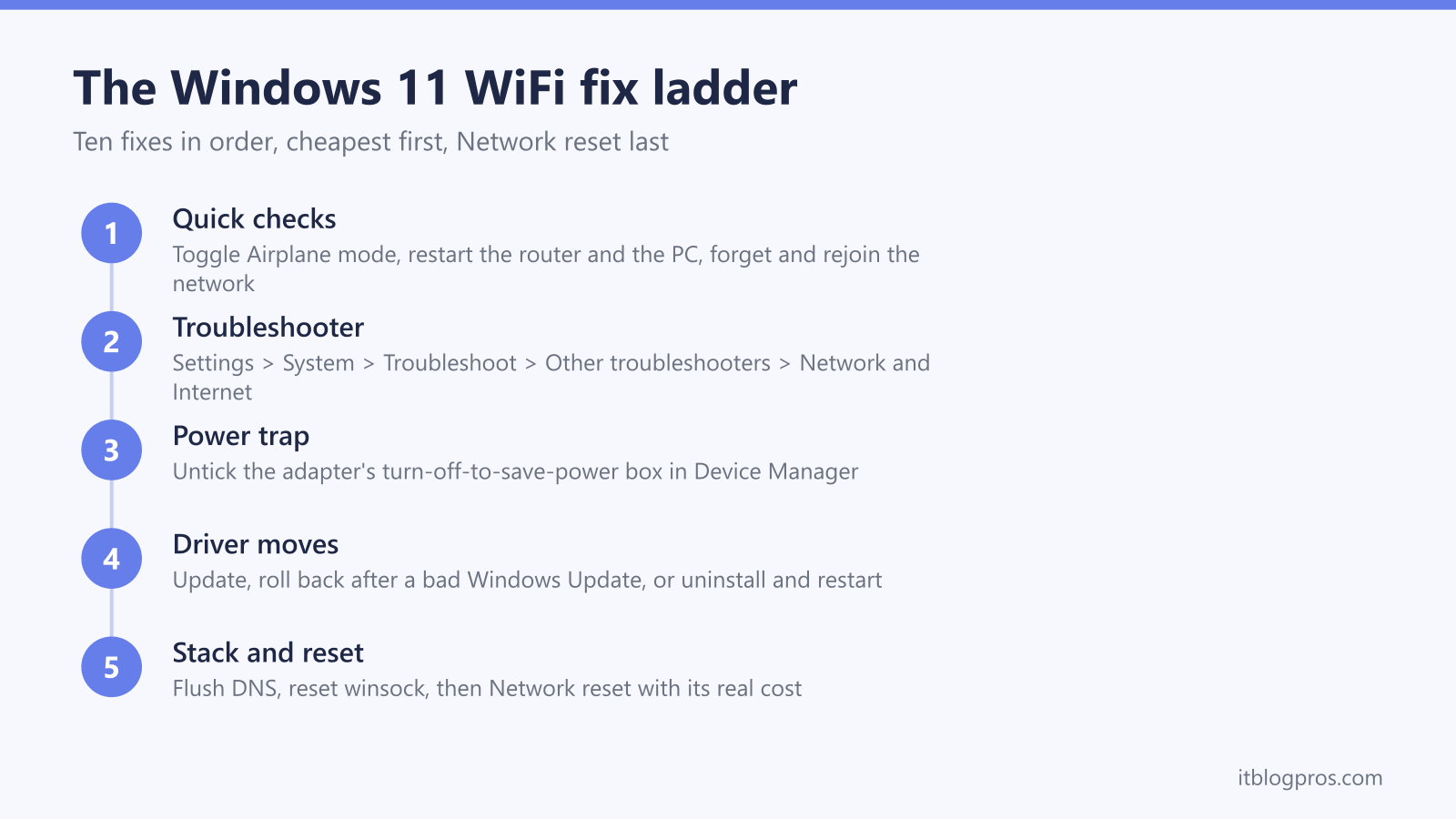
Work through the fixes in order: toggle Airplane mode, restart the router and the PC, then forget and rejoin the network. If WiFi still fails, untick "Allow the computer to turn off this device to save power" on the adapter in Device Manager, then update or roll back the driver. Flush DNS and reset winsock next, and keep Network reset for last because it reinstalls every adapter and wipes saved WiFi passwords.
Key Takeaways
- Most Windows 11 WiFi faults clear with the 30-second checks: toggle Airplane mode, restart both the router and the PC, then forget the network and rejoin it with the password.
- Laptops that drop WiFi after sleep are usually hitting the power trap: untick "Allow the computer to turn off this device to save power" on the Power Management tab of the WiFi adapter in Device Manager.
- Device Manager covers three driver moves: Update driver for stale drivers, Roll Back Driver when a Windows Update breaks the connection, and Uninstall device plus a restart to force a clean reinstall.
- Random hardware addresses protects privacy on public WiFi but breaks captive portal sign-ins, MAC allow-lists and router device lists, so turn it off for any network that misbehaves.
- Network reset sits last on the ladder for a reason: it removes and reinstalls every network adapter, wipes saved WiFi passwords, and leaves VPN client software needing a reinstall.
Fix 1: Toggle Airplane mode and the WiFi switch
Start with the radio itself. Press Windows key + A to open quick settings and check two tiles: WiFi should be lit, and Airplane mode should not be. Turn Airplane mode on, wait ten seconds, then turn it off again. That forces Windows to power the wireless radio down and reinitialise it, which clears a surprising number of ghost faults where the network list sits empty or the adapter refuses to scan.
The same switches live at Settings > Network & internet if the quick settings panel misbehaves. On laptops, also check for a physical WiFi switch or an Fn-key combination with an aerial icon, because a knocked hardware switch overrides everything Windows tries to do.
Fix 2: Restart the router and the PC, not just one of them
Restart both ends before touching anything deeper. Pull the power lead on the router, wait 30 seconds, and plug it back in. Give it a few minutes to fully boot before judging the result.
On the Windows side, use Start > Power > Restart rather than Shut down. Windows 11 ships with fast startup enabled, which means a shutdown saves part of the system state to disk and resumes it next boot, faults included. Restart is the option that genuinely clears the kernel and the network stack, so a machine that has been "turned off and on again" via Shut down may never have restarted at all.
Fix 3: Forget the network and rejoin it
Saved network profiles go stale. If the router password changed, the security mode changed, or the profile simply corrupted, Windows keeps retrying with the old details and fails, sometimes with the message that some information has changed since the last time you connected.
Go to Settings > Network & internet > Wi-Fi > Manage known networks, find your network and select Forget. Then pick the network from the WiFi list and rejoin with the current password. This rebuilds the profile from scratch and fixes mismatches that no amount of retrying will clear.
Fix 4: Run the Network and Internet troubleshooter
Windows 11 keeps its automated diagnostics at Settings > System > Troubleshoot > Other troubleshooters. Select Run next to Network and Internet. On current builds this hands over to the Get Help app, which runs the same network diagnostics in a guided flow; answer its prompts and let it apply the fixes it offers.
The troubleshooter resets the adapter, re-runs DHCP and checks the usual misconfigurations. It will not fix a broken driver, but it is free, fast, and occasionally names the exact component at fault, which tells you which rung of this ladder to jump to.
Fix 5: Stop Windows turning the WiFi adapter off to save power
This is the classic Windows 11 WiFi trap, and it explains the pattern where WiFi works after a fresh boot but drops after sleep or a period of idling, especially on laptops running on battery.
Right-click Start and choose Device Manager, expand Network adapters, and double-click your WiFi adapter. On the Power Management tab, untick "Allow the computer to turn off this device to save power" and select OK. Windows can no longer suspend the adapter to save a few milliwatts, which is exactly the behaviour that leaves the connection dead until the next reboot.
For a belt-and-braces pairing on laptops, open the power plan's advanced settings, expand Wireless Adapter Settings > Power Saving Mode and set it to Maximum Performance for both battery and mains.
Fix 6: Update, roll back or reinstall the WiFi driver
Device Manager offers three driver moves, and picking the right one depends on when the problem started.
Update when the fault has been there a while: right-click the WiFi adapter, choose Update driver, then Search automatically for drivers. Better still, fetch the latest package from your laptop maker or the chipset vendor over ethernet or another device, because Windows Update often carries an older version. Settings > Windows Update > Advanced options > Optional updates sometimes lists a newer WiFi driver too.
Roll back when WiFi broke immediately after a Windows Update: open the adapter's Properties, switch to the Driver tab and select Roll Back Driver. Windows returns to the previous driver it has stored. If the button is greyed out, there is no stored previous driver, so install a known-good version from the manufacturer instead.
Reinstall when the driver looks corrupt or the adapter shows a warning icon: right-click the adapter, choose Uninstall device, then restart the PC. Windows detects the hardware on boot and reinstalls a fresh copy of the driver.
Fix 7: Flush the DNS cache and reset winsock
When WiFi shows connected but pages will not load, the radio is usually fine and the software stack is the problem. The connected but no internet guide covers the router side of that fault; on the Windows side, five commands rebuild the stack.
Right-click Start, choose Terminal (Admin), and run these one at a time:
ipconfig /flushdns
netsh winsock reset
netsh int ip reset
ipconfig /release
ipconfig /renew
The first clears cached DNS lookups, the winsock reset removes broken network hooks left behind by VPNs and security software, and the remaining commands rebuild TCP/IP and pull a fresh IP address from the router. Restart the PC afterwards so the winsock and TCP/IP resets take effect.
Fix 8: Turn off Random hardware addresses when sign-in pages or allow-lists break
Windows 11 can present a randomised MAC address instead of the adapter's real one, which stops shops and venues tracking the laptop between visits. The toggle lives at Settings > Network & internet > Wi-Fi as "Random hardware addresses", with a per-network version (Off, On, or Change daily) inside each network's properties.
The privacy win has three known casualties. Captive portals in hotels, cafés and on trains often tie your sign-in session to your MAC address, so a randomised or daily-changing address forces endless re-logins or blocks the sign-in page from loading at all; the WiFi sign-in required explainer covers that flow in detail. Routers using a MAC allow-list will reject the random address outright. And your own router's device list fills with unknown duplicate devices, which makes parental controls and per-device rules unreliable.
For any network showing those symptoms, set Random hardware addresses to Off for that network, forget it, and rejoin.
Fix 9: Check WPA3 settings when an older adapter refuses to connect
WPA3 support depends on the adapter and its driver, not just on Windows 11. Intel, for example, documents WPA3 as requiring specific adapter generations and driver versions. An older WiFi adapter on a network set to WPA3-only can see the SSID, loop through authentication and never connect, often without a useful error.
Two fixes, in order of preference. First, install the newest driver for the adapter from the manufacturer, because several WPA3 handshake bugs were fixed in driver updates. If the adapter still fails, log in to the router and change the wireless security from WPA3-only to WPA2/WPA3 mixed mode (sometimes labelled transition mode), which serves WPA3 to capable devices while letting older ones connect over WPA2. Avoid dropping all the way back to WPA2-only unless nothing else works.
Fix 10: Run Network reset last and understand its cost
Network reset is the sledgehammer, and it lives at Settings > Network & internet > Advanced network settings > Network reset. Selecting Reset now removes every network adapter from the system, reinstalls them with default drivers, and puts all networking components back to factory settings. Windows warns you and then restarts the PC to finish the job.
The cost is real, which is why it sits at the bottom of the ladder. Every saved WiFi network and password is wiped, so have the router password to hand. Static IP addresses, custom DNS servers and proxy settings revert to automatic. VPN client software and virtual switches are removed along with their adapters, so expect to reinstall the VPN app afterwards. In exchange, Network reset clears the deep corruption that survives every other fix, and for a machine whose networking has been broken for weeks it is often the single move that works.
The faults that survive all ten fixes
If the connection still fails after Network reset, change what you are testing. Check another phone or laptop on the same WiFi: if nothing gets online, the fault belongs to the router or the broadband line, not Windows. If other devices work and the Windows machine sits at one or two signal bars, distance and interference are the real problem, and the two-bar signal fix guide is the right ladder to climb instead.
Keep Windows itself current as well. Settings > Windows Update patches known WiFi regressions in Windows 11 builds, and a machine several updates behind can be fighting a bug that was fixed months ago. A machine that fails on every network, at close range, on current drivers and a current build, has earned a hardware diagnosis at that point.