
Join the WiFi at a hotel, an airport, a coffee shop, or on a plane, and a notification often lands before the first page loads: Sign in to WiFi network. The alert looks like an error, but it is the network working exactly as designed. This guide explains the captive portal behind the message, why the sign-in page sometimes refuses to appear, and the reliable tricks that force it open.
The 'Sign in to WiFi network' notification means the network you joined uses a captive portal, a login or terms page that must be dealt with before traffic flows. Your device spots the portal by fetching a known test address on join; a redirect triggers the alert. When the page never loads, opening a plain HTTP site such as neverssl.com, or pausing a VPN or private DNS, forces it to appear.
Key Takeaways
- The 'Sign in to WiFi network' alert means the network runs a captive portal, the login and terms page that hotels, airports, coffee shops, and airlines put in front of new devices.
- Devices detect portals by fetching a known test address the moment they join: Apple probes captive.apple.com, Android expects an empty HTTP 204 reply from a Google check server, and Windows checks msftconnecttest.com.
- The sign-in page usually fails to load because HTTPS, an auto-connecting VPN, iCloud Private Relay, or Android Private DNS blocks the redirect the portal depends on.
- Opening http://neverssl.com, browsing to the gateway address, or forgetting and rejoining the network forces a stuck sign-in page to appear.
- Signing in adds no encryption on an open network; HTTPS in the browser provides the real protection, and the same alert at home means the router has lost its internet connection.
The Notification Means the Network Runs a Captive Portal
That alert is not an error message. It is your device reporting that the network it just joined sits behind a captive portal: a gateway that holds every new device in a walled garden and refuses to pass traffic until a web page has been viewed and dealt with. The page might ask you to accept terms and conditions, enter a room number and last name, type an access code from a receipt, hand over an email address, or pay for a package.
Venues run portals for practical reasons. Hotels tie access to a booking so only guests use the bandwidth. Airports and coffee shops want terms accepted for legal cover, and often an email address for marketing. Airlines sell tiered in-flight packages, so the portal doubles as a checkout. Schools, hospitals, and offices use portals to control exactly who gets onto a guest network.
Each operating system surfaces the same discovery differently. Android posts the 'Sign in to network' notification, which older versions phrase as 'Sign in to WiFi network'. iPhones, iPads, and Macs pop up a small dedicated window, a stripped-down mini browser Apple calls the Captive Network Assistant, with the login page already loaded. Windows flags the connection with an action-needed note and opens the default browser at the sign-in page. All three are triggered by the same detection trick, which is worth understanding because it explains every fix that follows.
Phones Detect the Portal by Testing an Address They Know by Heart
The moment a device joins any network, it quietly fetches a tiny test page whose contents it knows in advance. Apple devices request hotspot-detect.html from captive.apple.com and expect a page containing the single word Success. Android fetches a Google-run check address, connectivitycheck.gstatic.com/generate_204, and expects an empty response with HTTP status 204. Windows downloads connecttest.txt from msftconnecttest.com and expects the exact text Microsoft Connect Test.
The logic is simple. If the expected reply comes back untouched, the internet is reachable and the device says nothing. If the reply is a redirect to some other page, something on the network intercepted the request, which is precisely what a captive portal does, so the device raises the sign-in prompt and loads whatever page the redirect points at. If nothing comes back at all, the device reports no internet instead.
The critical detail is that these probes use plain, unencrypted HTTP on purpose. A portal can only insert its login page by hijacking a request, and it can only hijack traffic that is not encrypted. That single fact explains both why the notification works so reliably and why the sign-in page sometimes never appears, which is the next problem to solve.
Why the Sign-In Page Never Loads
The classic frustration runs like this: the notification appears, a tap on it produces a blank page or an endless spinner, or no notification arrives at all and every website simply times out. A handful of modern conveniences are usually to blame, and all of them break the redirect the portal depends on.
HTTPS everywhere. Almost every real website now uses HTTPS. The portal cannot rewrite an encrypted request without triggering a certificate alarm, so browsing to your usual sites gives it nothing to redirect. This is why the old advice to 'just open a website' stopped working years ago.
A VPN that connects on join. A VPN configured to start automatically tries to wrap all traffic in its tunnel before the portal has granted access. The tunnel cannot come up because the portal blocks it, and the portal page cannot load because the VPN grabs the traffic: a perfect deadlock.
iCloud Private Relay on iPhone. Private Relay routes Safari browsing and DNS lookups through Apple's relays, and on some networks that stops the portal check or the login page from completing.
Private DNS on Android. Many portals do their interception at the DNS layer, answering lookups with the portal's own address. Encrypted DNS, which is what Android's Private DNS setting provides, sidesteps exactly that mechanism, so the redirect never happens.
Stale, cached DNS. The device may reuse lookups remembered from a previous network, sending requests somewhere the portal does not intercept. A forget-and-rejoin or an airplane-mode toggle clears it.
None of this means the network is broken. The portal is standing there waiting; the device just never hands it a request it can capture.
Reliable Ways to Force the Sign-In Page Open
Work down this list in order; the first two moves solve the overwhelming majority of stuck portals.
-
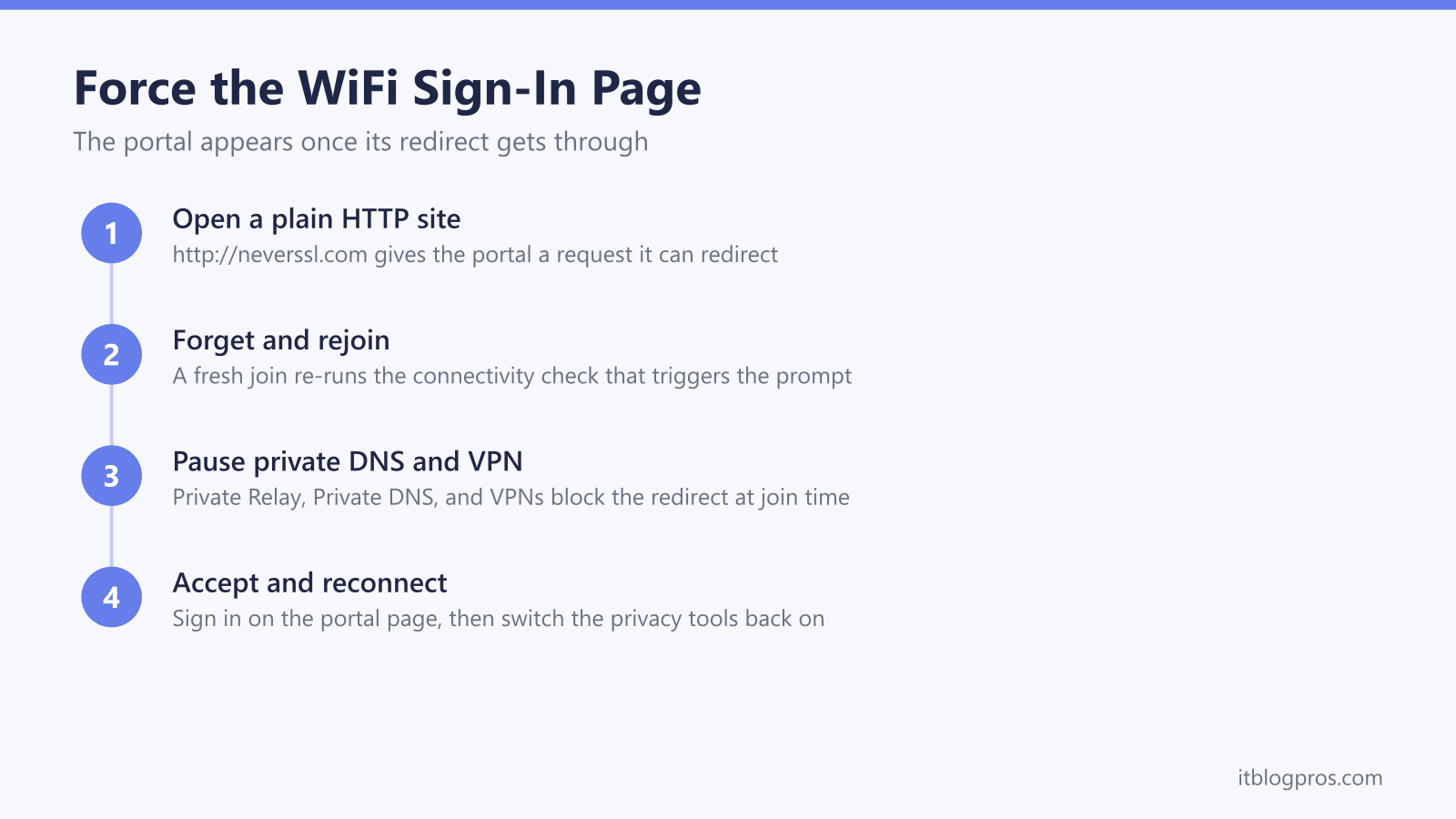
Open a plain HTTP site. Type http://neverssl.com into the address bar of any browser. The site exists purely for this purpose: it is deliberately served without encryption, never redirects to HTTPS, and holds no content worth protecting, so the portal is free to hijack the request and swap in its login page. Apple's own check address, http://captive.apple.com, works the same way.
-
Browse to the gateway address. Typing http://192.168.1.1 or http://10.0.0.1 into the browser reaches the network's own router, and many portals serve the login page directly from that address.
-
Forget the network and rejoin. In WiFi settings, tap the network name, choose Forget, then reconnect. This wipes cached state and forces the detection probe to run again from scratch. A quick airplane-mode toggle is the lighter version of the same reset.
-
Pause the privacy tools, then join. Disconnect any VPN before joining the network. On Android, set Private DNS to Off temporarily under Settings, Network and internet. On iPhone, turn off Private Relay temporarily under Settings, your name, iCloud, Private Relay. Rejoin the network and let the sign-in page appear.
-
Restore everything afterwards. Once the portal has granted access, switch the VPN, Private DNS, or Private Relay straight back on. The portal only needs a clear view during sign-in; after that, encrypted DNS and a VPN work normally on most networks.
On a Windows laptop that still refuses to show the page, run ipconfig /flushdns in Command Prompt to clear cached lookups, then try http://neverssl.com again. The broader adapter and driver checks in our Windows 11 WiFi problems guide cover the cases where the wireless connection itself is misbehaving.
Signing In Grants Access, Not Security
A captive portal is a bouncer, not a bodyguard. Passing the sign-in page changes exactly one thing: the network starts forwarding your traffic. It adds no encryption whatsoever. If the network has no password, shown by the missing padlock in the WiFi list, the radio link stays unencrypted after you sign in exactly as it was before, no matter how official the portal page looked.
The protection you actually rely on in a cafe or an airport comes from HTTPS. Nearly all banking, email, shopping, and social sites encrypt their traffic end to end with TLS, so someone sitting on the same open network cannot read your passwords or messages even if they capture every packet. That is the heavy lifting, and it happens in the browser, not in the portal.
The realistic risks on public WiFi sit elsewhere. A fake hotspot broadcasting the venue's name can present a convincing counterfeit portal, and any portal that demands a card number, a password to another account, or an unusual amount of personal data in exchange for free WiFi deserves suspicion. Confirming the exact network name with staff costs nothing, and a legitimate portal generally wants nothing more than a tap on Accept, an email address, or a room number. A VPN adds a further layer of privacy on open networks; the practical order is to pause it to get through the portal, then reconnect it for the rest of the session.
The Same Notification on Home WiFi Signals a Lost Connection
Home routers do not run captive portals, so a sign-in alert on your own WiFi is almost never a real login demand. It means the connectivity check failed: the router is broadcasting WiFi and the phone joined it, but the test request never made it out to the internet and back. Some Android versions dress that failure up as a sign-in prompt; others show connected with no internet. Either way the router has lost its upstream connection, or its DNS has stopped resolving.
The fix list is the standard one. Restart the router, and the modem if it is a separate box, wait for the lights to settle, and check whether other devices in the house are online. If everything is down, check your provider's outage page over mobile data. The full diagnosis lives in our guide to WiFi that says no internet, which walks the path from router lights to ISP faults in order.
Two settings are worth ruling out on the phone itself. A Private DNS hostname that is mistyped, or that points at a service currently down, makes Android report a connection problem on every network it joins. And if the alert only appears in one corner of the house at one or two bars of signal, the check may simply be timing out over a weak link; the quick wins in fixing WiFi stuck at two bars deal with that version of the problem.