
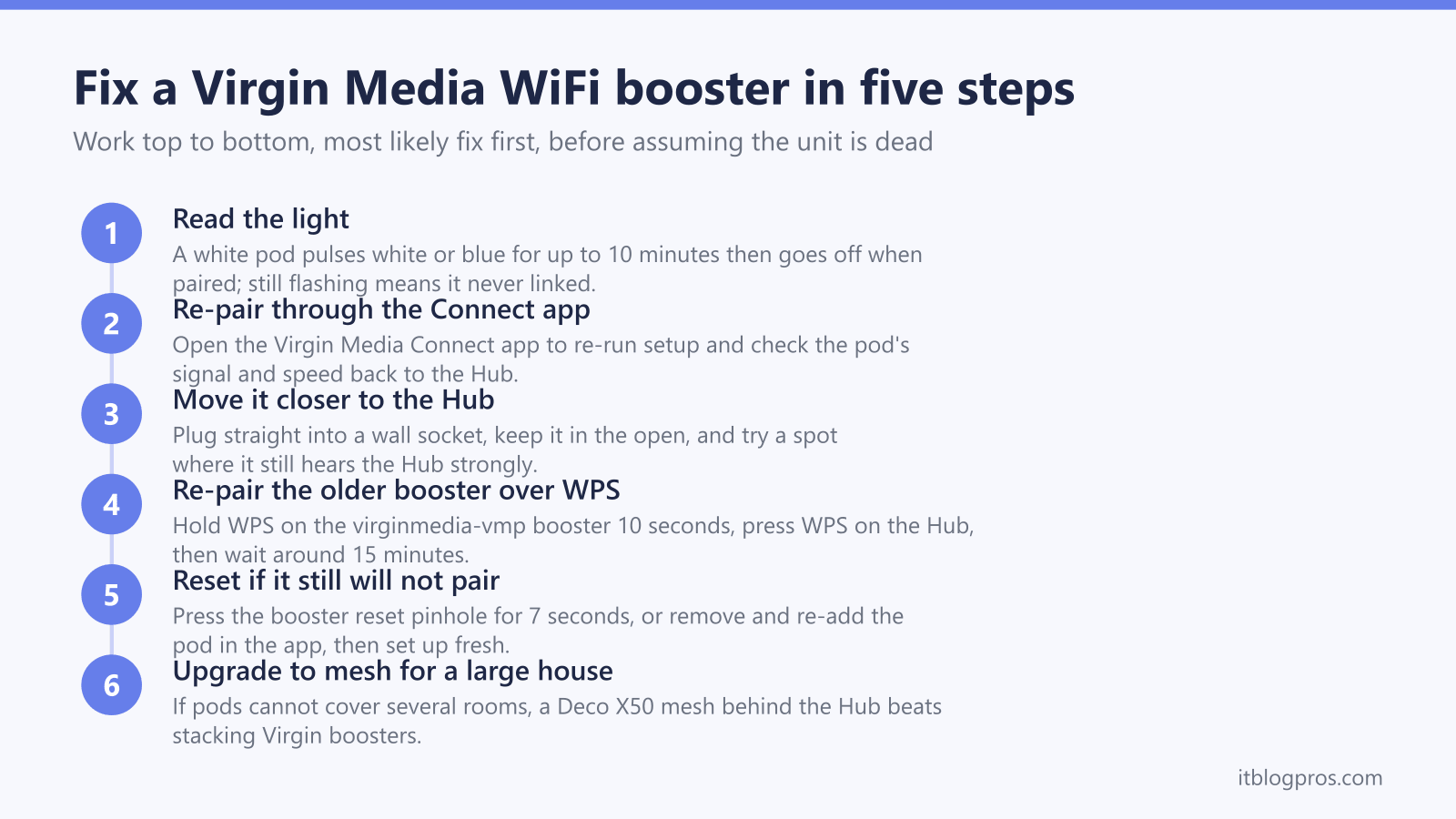
A Virgin Media booster that pulses white forever, refuses to connect, or keeps dropping the room it was meant to rescue feels like a dead unit, and most people quietly assume they need a replacement. Usually that is wrong. The Pod or booster is fine; it has simply lost its link to the Hub, or it is sitting in a spot where it has nothing decent to rebroadcast. This guide covers both Virgin units, the white WiFi Pods and the older virginmedia-vmp boosters, in the order the fixes actually work. Re-pairing first, placement next, a reset if it still sulks, and an honest note on when stacking Virgin kit has run out of road and a mesh behind the Hub is the smarter buy.
A Virgin Media WiFi Pod pulses white or blue for up to ten minutes during setup, then the light goes off once it links to the Hub. A light still flashing after ten minutes means it never paired. Re-pair it through the Connect app, move it closer to the Hub, then reset it if needed. Pods only work with the Hub in router mode, so for whole-home coverage a mesh behind the Hub beats stacking pods.
Key Takeaways
- On a Virgin WiFi Pod the light pulses white or blue for up to ten minutes during setup, then turns off once it links to the Hub, so a steady-on or no-light pod is the tell something is wrong.
- A pod still flashing white after ten minutes never finished pairing; re-run setup in the Virgin Media Connect app or move the pod nearer the Hub before assuming it is faulty.
- On the older virginmedia-vmp booster the Connection light flashes amber then red when it is ready to pair, and after a successful WPS pair the connection arrows go off while the power dots stay on.
- Virgin Pods only work with the Hub in router mode, not modem mode, and they stop working the moment you leave Virgin, which is the honest limit of renting your coverage.
- For real whole-home coverage a mesh such as the Deco X50 behind the Hub beats stacking boosters, because a chain of pods runs out of road in a large or multi-floor house.
A Virgin WiFi Pod that keeps flashing white never finished pairing
Lead with the likeliest culprit, because it covers most cases. A Virgin Media WiFi Pod holds an invisible link back to your Hub, and that link is fragile. When you first plug a white Pod in, the light pulses white or blue for up to ten minutes while it talks to the Hub, and as soon as it connects successfully the light turns off. An off light is the good outcome, not a dead unit.
So the classic complaint, the pod is flashing white and will not stop, decodes cleanly. If the light keeps pulsing past ten minutes, Virgin themselves say it may mean there is a fault, but in practice it almost always means the pod never finished pairing with the Hub. The fix is to re-run setup rather than buy a replacement.
Open the Virgin Media Connect app, which is the control unit for your WiFi and where pods are managed. Use it to check the pod's health, signal strength and speeds, and to walk the pairing again. If the app reports a weak signal back to the Hub, that is a placement problem rather than a faulty pod, and the next section is for you. One honest caveat before you start: a re-pair fixes the link, it cannot fix a pod parked too far from the Hub to hear it properly.
Repositioning the pod closer to the Hub fixes most weak or dropping connections
Placement is where most boosters quietly fail, even after a clean pair. A Virgin Pod can only rebroadcast what it can hear from the Hub, so a pod sitting too far away, behind a thick wall or tucked inside a cupboard hears a weak signal and faithfully passes on a weak signal. Weak in, weak out.
The rule is to keep the pod within comfortable reach of the Hub, in a spot where it still gets a strong link back, then let it cover the room beyond. Virgin's own advice is to try the pod in a different location around your home to find the best spot, and to use the Connect app to read the signal strength at each position. A few practical pointers tidy up the rest. Plug the pod straight into a mains wall socket rather than an extension lead, keep it out in the open rather than behind the telly or inside a unit, and steer it clear of microwaves and thick masonry. If the app still shows a poor link wherever you put it, the room may simply be too far from the Hub for a single pod, which is the mesh question we get to below.
The older virginmedia-vmp booster pairs over WPS and its lights read differently
Not everyone has the white pods. Plenty of Virgin homes still run the older WiFi Booster, the unit people remember by the virginmedia-vmp name, and its lights mean different things, so do not apply pod logic to it.
Plug the booster directly into a mains socket near the Hub, never an extension lead, power strip or surge protector, because that alone trips up a lot of setups. The Power light comes on and the Connection light flashes amber, then flashes red when the booster is ready to be paired. To pair it, press and hold the WPS button on the booster for about ten seconds until the wireless and power lights blink, then press and hold the WPS or Virgin Media button on the Hub until its light starts blinking, which copies the Hub's details across. Then wait. Leave the booster undisturbed for around fifteen minutes so it can pair and pull down the latest software, which matters for it to work properly. When it has paired successfully the connection arrows and the WiFi light go off and the power dots stay on, which is the steady, working state. If the colours never settle, a reset is next.
A factory reset clears a booster or pod that will not pair
When re-pairing and repositioning both fail, a factory reset wipes the unit back to defaults and lets you set it up cleanly, which clears a confused or half-paired state.
On the older virginmedia-vmp booster, use the tip of a pen to press the Reset button on the unit for seven seconds, which returns it to factory settings, then run the WPS pairing from the start as above. On a white WiFi Pod, the cleaner route is to remove the pod in the Virgin Media Connect app and add it again from scratch, since the pods are managed end to end by Virgin rather than through buttons on the unit. After any reset, give the kit the full ten to fifteen minutes to pair and update before deciding it has failed, because pulling the plug early during a software update is one of the few things that genuinely can leave a unit confused. If a pod still shows no light at all after a clean reset and pairing, that is the point at which it may truly be faulty, and a call to Virgin for a swap is reasonable.
Virgin Pods only work with the Hub, and that limit is built in
Time for the honest bit, because it shapes everything below. Virgin Pods are Virgin's hardware, tied to the Virgin Hub, and they work only with the Hub in its standard router mode with the WiFi bands combined and smart WiFi switched on. They do not work when the Hub is in modem mode, which trips up anyone who has put the Hub into modem mode to run their own router.
The deeper limit is ownership. You never actually own the pods, they only function alongside a Virgin Hub, and the moment you switch provider they become paperweights. The pods are also deliberately basic dual-band kit, built to scrape a usable signal into a far room rather than to blanket a busy, multi-floor home in fast, dense coverage. Stacking more pods does not change that ceiling. None of this means the pods are bad, for one stubborn room they are fine, but it does mean there is a point where renting an ongoing patch costs more, and works less well, than owning the fix outright. That is the next decision.
When it is worth replacing the booster with a mesh behind the Hub
Here is the blunt verdict. If you have re-paired, repositioned and reset a Virgin booster and it still cannot cover the rooms you care about, or you find yourself wanting a second and third pod to chase coverage across a large or multi-floor house, the kit has run out of road. A chain of basic pods becomes a fragile, uneven patchwork, and that is mesh territory, not booster territory.
A mesh you own flips the arrangement. It is a one-off cost rather than a forever add-on, it is yours through any house move or provider switch, and it gives stronger hardware with one seamless network name and automatic roaming as you walk between rooms. It plays nicely with Virgin too: you can run the mesh in access-point mode beside the Hub, or on the Hub 3, 4 and 5 switch the Hub to modem mode and let the mesh handle all the routing, which sidesteps double NAT. The pick we would actually live with for whole-home Virgin coverage is the TP-Link Deco X50, an AX3000 WiFi 6 mesh that sets up from the app in minutes and carries enough headroom for thick walls and several dead rooms.
One crucial piece of honesty before anyone reaches for their wallet. A mesh fixes coverage and consistency, not the line speed your Virgin package sells you, so set expectations correctly and you will be delighted rather than disappointed. If you are weighing it up, our full guide to the best mesh for the Virgin Media Hub 5 walks through the picks and the modem-mode setup in detail, and the WiFi booster or extender not working pillar gathers every fix in one place.
