
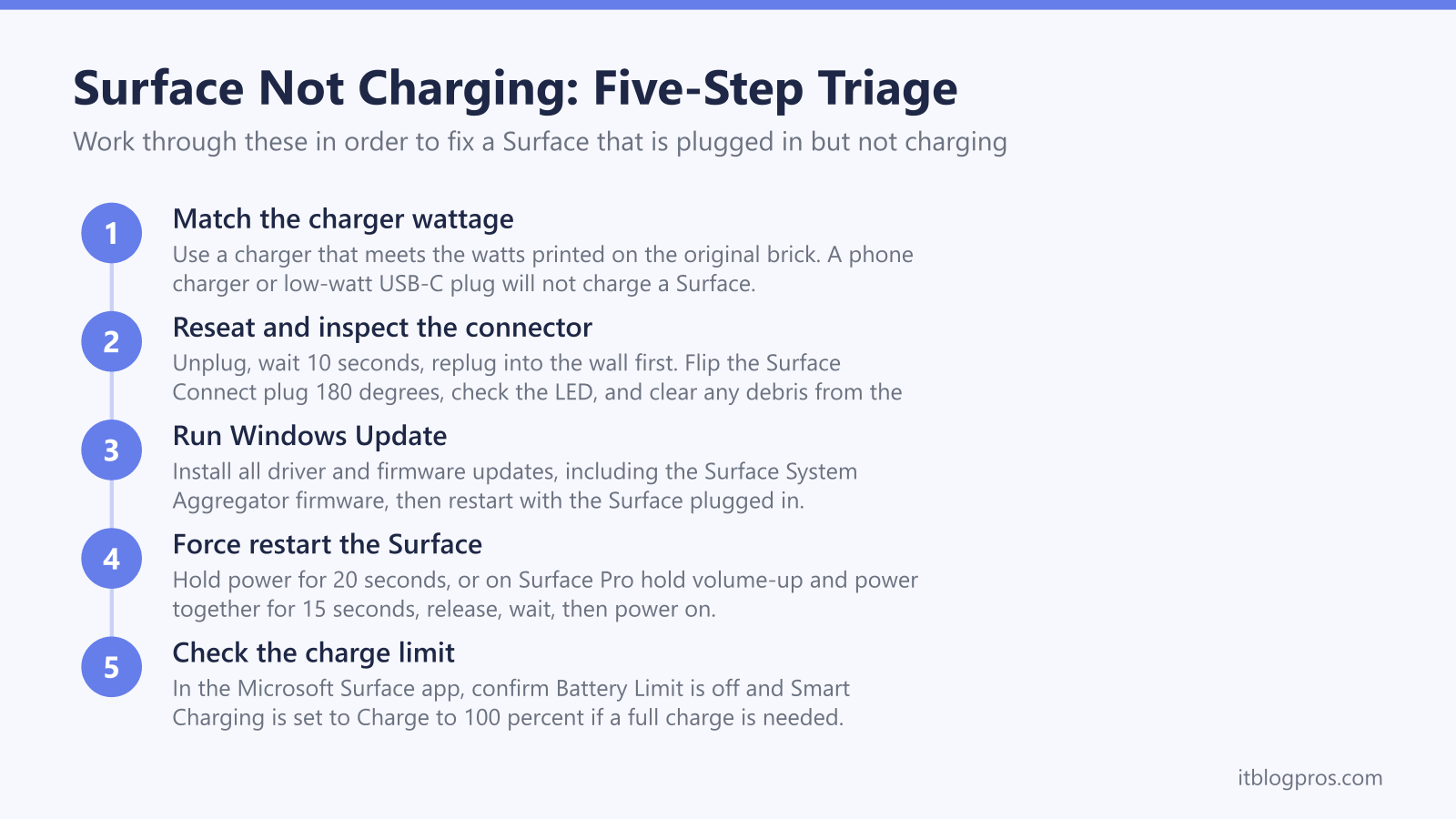
A Microsoft Surface that shows the plug icon yet refuses to charge is one of the more confusing power faults to diagnose, because Surface devices charge in two completely different ways depending on the model. Some draw power through the magnetic Surface Connect port, while newer Surface Laptop and Surface Pro models also accept USB-C Power Delivery. The cause is rarely a dead battery. Far more often the charger is not supplying enough watts, the connector or port is dirty, a firmware component needs an update through Windows Update, or a built-in battery limit is deliberately holding the charge back. This guide works through the genuine Surface-specific causes in order, so the fix that applies to a given model is easy to find. It forms part of the wider laptop power and charging cluster on this site, and each fix below is something an owner can try without opening the device.
A Surface plugged in but not charging is usually caused by an underpowered charger, a dirty Surface Connect or USB-C port, an outdated Surface System Aggregator firmware, or an active Battery Limit or Smart Charging setting. Confirm the charger meets the required wattage, clean and reseat the connector, run Windows Update, perform the two-button restart, and check the charge limit in the Surface app.
Key Takeaways
- A Surface needs a charger that meets the printed wattage. A phone charger or low-watt USB-C plug will charge slowly or not at all, and many Surfaces need 45W to 60W or more.
- Surface Connect and USB-C are two separate charging paths. If both are connected the Surface only charges from Surface Connect, and older Surfaces charge through Surface Connect only.
- An outdated Surface System Aggregator firmware can stop the battery charging. Running Windows Update installs the driver and firmware fixes that Microsoft pushes for charging faults.
- The two-button force restart clears a stuck power state when a Surface is plugged in, shows the plug icon, but still will not charge.
- A battery stuck at 50 percent usually means Battery Limit is enabled, while a stop at 80 percent is normal Smart Charging protecting the battery.
Surface charges in two different ways, and that decides the fix
Before changing anything, identify how the Surface is meant to charge, because the troubleshooting differs.
- Surface Connect is the flat magnetic port used by the bundled power supply. Every modern Surface has one, and older models such as Surface Pro 4 and earlier rely on it exclusively.
- USB-C Power Delivery (PD) is supported on newer Surface Laptop and Surface Pro models, which can charge from a USB-C PD charger as well as from Surface Connect.
Two rules follow from this. First, a Surface cannot charge from a Surface Connect charger and a USB-C charger at the same time. If both are plugged in, the Surface only draws from the Surface Connect charger. Second, if the model predates USB-C charging, plugging into the USB-C port will not charge it at all, no matter how powerful the charger is. When the original Surface Connect charger is lost or faulty, USB-C is only a substitute on models that actually support charging over USB-C PD.
An underpowered charger is the most common reason a Surface will not charge
The single most frequent cause is a charger that does not supply enough power. Surface devices state a required wattage on the original brick, and a charger below that figure may charge very slowly or not at all.
- A standard phone charger will not do the job. Most phone chargers deliver well under the 45W to 60W that many Surface models expect, so the device may show the plug icon while the charge level barely moves or stays flat.
- For USB-C charging, use a USB-C to USB-C cable rated for power. A USB-A to USB-C cable or a USB-A wall plug typically cannot deliver the watts a Surface needs.
- Wattage behaviour is visible at the lowest levels. If the battery is fully drained and the charger is 60W or higher, the Surface turns on the instant it is plugged in. With a charger under 60W, the Surface must reach about 10 percent before it will power on.
The practical guidance from owners and Microsoft is to match or exceed the wattage printed on the original power supply. For many Surface Pro and Surface Laptop models that means a genuine 60W or 65W USB-C PD charger as a minimum for proper charging.
Inspect and reseat the connector and port
A poor physical connection mimics a charging failure. This step is quick and resolves a surprising share of cases.
- Unplug the charger from the wall and detach it from the Surface. Wait at least 10 seconds.
- Plug the charger into the wall first, then connect it to the Surface.
- On a Surface Connect charger, flip the magnetic connector 180 degrees and check whether the small LED on the connector lights up. A lit LED confirms the charger is delivering power.
- Inspect the Surface Connect port or the USB-C port for lint, dust, or debris, and check the connector and cable for fraying or damage. Debris can stop the connector seating properly and block charging.
- Try a different wall outlet, and avoid power strips or surge protectors for the test, in case the outlet is the fault rather than the Surface.
If the charger LED never lights regardless of orientation, the power supply or cable itself may be faulty and is worth testing on another Surface or swapping for a known-good unit.
Update drivers and firmware through Windows Update
Surface charging is governed partly by firmware, and an outdated component can prevent the battery charging correctly. The relevant component is the Surface System Aggregator firmware, which manages battery status and charging stability. Microsoft delivers Surface driver and firmware updates through Windows Update, and these have historically fixed real charging and battery bugs.
- Open Settings, go to Windows Update, and select Check for updates. Install everything offered, including optional driver and firmware updates, then restart.
- For a battery that charges but stalls, or for a driver glitch, the battery driver can be refreshed. In Device Manager, expand Batteries, then for Microsoft ACPI-Compliant Control Method Battery and Surface Battery, open each entry, choose Uninstall device, and restart. Windows reinstalls the driver automatically on reboot.
- Keep the Surface plugged in and connected to the internet while updates install, and run Check for updates more than once, since some firmware packages only appear after an earlier update has been applied.
Perform the two-button force restart
If the Surface is plugged in, shows the charging icon, and still will not charge, a forced restart clears a stuck power state without losing files.
- Standard force restart: press and hold the power button for about 20 seconds until the device restarts and the Surface logo appears, then let go.
- Two-button restart (Surface Pro models): press and hold the volume-up button and the power button together until the screen turns off, which takes roughly 15 seconds. Keep holding even if the Surface logo flashes. Release both buttons, wait 10 seconds, then press the power button to turn it back on.
After the restart, leave the Surface plugged in for a few minutes and watch whether the charge level begins to rise. A force restart is safe to repeat and is a sensible step before assuming a hardware fault.
Check Battery Limit and Smart Charging before assuming a fault
A Surface that simply stops at a set percentage is often working exactly as designed, not failing.
- Smart Charging is always active and turns on automatically when the Surface is left plugged in for long periods or runs warm. It caps the maximum charge at 80 percent to protect the battery. When the battery drops below 20 percent or is used regularly, Smart Charging pauses and lets the device charge to 100 percent again. A stop at 80 percent is normal protective behaviour.
- Battery Limit is a separate setting, often used on devices that stay docked. When enabled it stops charging at 50 percent of capacity, and it will not resume until the battery falls below 50 percent. A battery that charges only to 50 percent almost always has Battery Limit switched on.
- To manage these, install the Microsoft Surface app, open Battery & charging, and in the Smart charging section choose Charge to 100%. Battery Limit is toggled in the Surface app or, on some models, in the UEFI settings.
Confirming these settings first avoids mistaking a deliberate charge cap for a hardware fault.
The right charger for a Surface that charges over USB-C
For Surface Laptop and Surface Pro models that support USB-C Power Delivery, a quality USB-C PD charger of sufficient wattage is a reliable replacement or spare for the original brick. The UGREEN 100W USB-C GaN charger comfortably exceeds the 45W to 60W that most Surface models expect, so it can charge a USB-C Surface at full speed while doubling as a charger for a phone or tablet.
The important caveat is the charging path. This recommendation applies only to Surface models that genuinely charge over USB-C PD. A Surface that charges through Surface Connect, or any older Surface without USB-C charging support, should use the official Surface power supply matched to the wattage printed on the original brick. Pair the charger with a power-rated USB-C to USB-C cable, since a USB-A cable or adapter will not deliver enough watts to charge a Surface properly.
This sits within the broader laptop power and charging problems guidance on this site, where the same wattage-matching rule applies across brands.
