
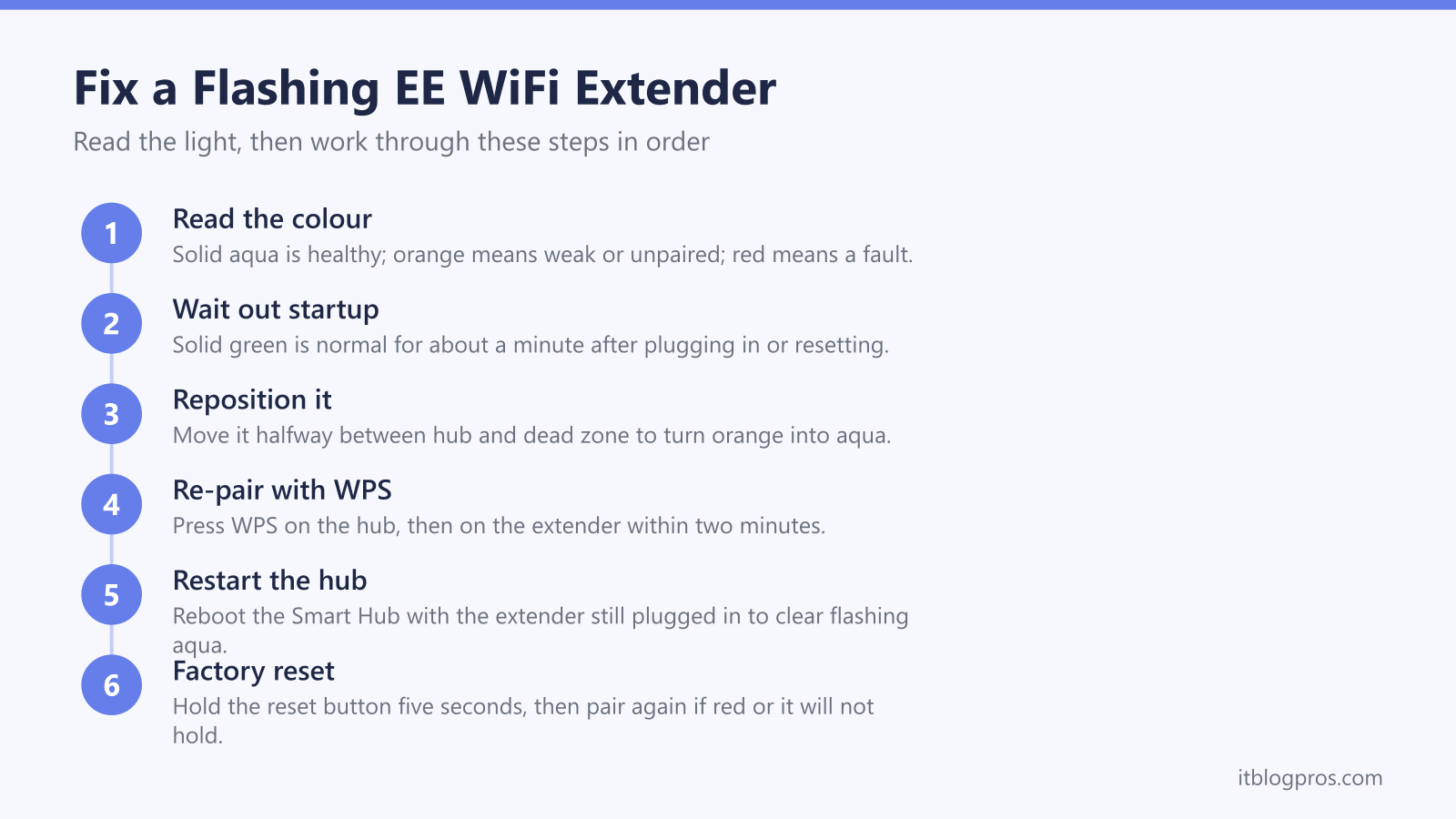
A flashing light on your EE WiFi extender is the unit telling you something specific, and most of the time the message is about the link back to your Smart Hub rather than a broken device. This guide decodes flashing orange, solid orange, red and the multi-light signal bars against EE's own support pages and its printed user guides, then walks through repositioning, a WPS re-pair and a clean reset. Where EE publishes no meaning for a colour, this guide says so rather than inventing one. The honest upgrade section at the end only applies if the extender keeps dropping after all of that.
EE publishes a light table for its extenders. Solid aqua means a healthy connection with good signal. Solid orange means it is connected but the link to the hub is weak, so move it closer. Flashing orange means it is not connected, so run WPS. Red means a fault, so restart both units. EE documents no flashing aqua state, and a reset and re-pair clears most faults.
Key Takeaways
- Solid aqua is the only fully healthy state. It confirms the EE extender is paired to your Smart Hub with a strong signal, so no action is needed.
- Solid orange means the extender is working but the link back to the hub is weak. The fix is repositioning it closer, roughly halfway between the hub and your dead zone.
- Flashing orange means the extender is not connected to the hub at all. Re-pair it by pressing WPS on the hub, then WPS on the extender within two minutes.
- EE documents no flashing aqua state on any extender model, so treat a flashing aqua light as a link that has not settled and re-pair it rather than trusting any stated meaning.
- A persistent red light or repeated drops after a reset point to a genuinely failing or outdated unit, which is the only time replacing it is worth it.
What Each EE WiFi Extender Light Colour Means
The readings below come from EE's WiFi extender troubleshooting page and from the WiFi Extender 6 Plus user guide that EE publishes as a PDF. EE lists the colours separately for each model rather than as one shared scheme, and the disc-style units carry a couple of extra colours such as purple and yellow, so check your own model on EE's page if a colour here does not match what you are seeing.
Solid green: the extender is starting up. EE puts this at approximately 60 seconds to fully turn on, so it is normal straight after plugging in or resetting. Wait for it to settle before judging anything else.
Solid aqua (teal): success. EE's wording is that the extender is all connected with a good WiFi or Ethernet connection and all is working well. This is the state you are aiming for, and no further action is needed.
Solid orange (amber): EE says the extender is working okay and advises moving it closer to the hub or to one of your other EE extender devices. The unit still passes traffic, so this is a quality warning rather than a failure.
Flashing orange: EE documents this as the extender not being connected to your Smart Hub. This is the pairing prompt. EE's instruction is to connect using WPS, or to use an Ethernet connection instead.
Flashing blue: EE describes this as the device connecting, with WPS activated and linking to your hub, and says it can take a couple of minutes. Leave it alone until it settles to aqua.
Flashing aqua: EE does not document this state anywhere. The light table in EE's WiFi Extender 6 Plus user guide runs to six entries, which are aqua, green, orange, flashing orange, flashing blue and red, and EE's troubleshooting page runs through the colours model by model without ever adding it. Flashing aqua is in none of those lists, so there is no vendor meaning to quote and this guide will not invent one. Threads on EE's own community forum, which is user discussion rather than EE documentation, do describe the Smart WiFi Plus flashing aqua, but no EE source defines it. In practice, treat it as a link that has not settled: reposition the extender, restart the Smart Hub with the extender left plugged in, then re-pair with WPS. If EE later adds the state, its extender troubleshooting page is where it will appear.
Solid red: in EE's words, there is a problem somewhere. EE's instruction is to turn the Smart Hub and the extender off and on again, and if the light still does not turn aqua, to press the factory reset button with a paper clip.
Flashing red: EE's extender troubleshooting page gives this the same meaning as flashing orange, which is that the extender is not connected to the hub. Treat it as a pairing prompt, re-pair with WPS, and if it recurs move on to a reset.
The Signal Bar Lights and What Strong Looks Like
Some EE extenders, including the disc-style Smart WiFi Plus, show a row of small lights that act as signal bars rather than a single status colour. More lit segments mean a stronger link between the extender and the hub, in the same way a phone shows signal strength.
The practical rule is simple. If only one or two of the bars are lit, the extender is too far from the hub or there is too much in the way, and it will struggle to deliver useful speed even though it appears connected. Aim for most or all of the lights lit and steady. A full, settled set of bars is the disc equivalent of the single solid aqua light on the plug-in units.
If the bars keep dropping in and out, that flickering points the same way as a status light that will not settle, which is that the position is marginal. The cure is the same as for a solid orange reading, which is repositioning, covered next.
Reposition the Extender to Turn Orange Into Aqua
Solid orange, a half-lit signal bar and a light that will not settle almost always come down to placement. The extender can only rebroadcast what it receives from the hub, so a weak link in means weak WiFi out.
EE's setup guide says to position the extender halfway between your hub and the part of your home needing stronger WiFi. EE's printed guide adds that it needs a clear space off the floor, away from other electrical devices and well ventilated, so a wall socket at about waist height beats down behind furniture.
Keep it clear of the things that wreck a 2.4GHz and 5GHz signal: microwaves, cordless phone bases, metal shelving, fish tanks and thick masonry walls. Avoid tucking it inside a cupboard or behind a TV.
After each move, give it a minute to re-evaluate the link. The goal is to walk the extender one socket at a time back toward the hub until the light settles to solid aqua, or until the signal bars are mostly full and steady. If you reach a point one room from the hub and it still will not hold aqua, the problem is more likely the extender itself than the position.
Re-Pair the EE Extender With WPS
Flashing orange and flashing red both mean the extender is not connected to the hub, in EE's own words, and the fix is to re-run WPS.
- Make sure the extender is plugged in and has finished starting up, so it is past the solid green stage.
- Press the WPS button on your EE Smart Hub.
- Press the WPS button on the EE extender. EE's setup guide says both buttons must be pressed within two minutes of each other.
- The extender light will flash blue while it connects. EE says pairing can take up to five minutes, so do not unplug it during this.
- When pairing succeeds, the light settles to solid aqua, or the signal bars fill on a disc unit.
If you would rather pair over a cable, or WPS keeps failing, connect the extender to the hub with an Ethernet cable for the initial link, which EE offers as the alternative to WPS, then move it to its final spot. If the light goes flashing blue and then back to flashing orange without ever reaching aqua, the hub and extender are not seeing each other, which is the cue to reposition closer for the pairing attempt and try again.
Factory Reset the Extender as a Last Resort
When the light stays solid red after an off-and-on, or the extender refuses to pair no matter where you place it, a factory reset clears stale settings and lets it start fresh.
- Leave the extender plugged in and powered on.
- Find the recessed reset button on the side or base of the unit.
- Press it with a paperclip or pen tip, which is the method EE specifies, and hold until the light changes to indicate a restart. EE does not publish a hold time in seconds for its extenders, so go by the light rather than counting.
- Release and wait while it reboots, which will show solid green during startup.
- Once it has restarted, re-pair it from scratch using the WPS steps above.
One step worth trying for a light that will not settle is to restart the Smart Hub while leaving the extender plugged in and powered. EE does not document this as a fix, and it is not in the troubleshooting sequence EE publishes, but it costs nothing and it re-runs the pairing handshake from the hub end. If a full reset and re-pair still will not hold a stable aqua light, the unit itself is the likely culprit.
When It Is Worth Replacing the EE Extender
Troubleshoot first. The steps above fix the large majority of flashing-light cases, and a working EE extender that is paired and well placed costs nothing to keep. Replacement is only the honest answer in two situations.
The first is a unit that keeps dropping. If the light cycles back to orange or red within hours or days of every reset and re-pair, and you have ruled out position, the extender or its WiFi radio is failing and no amount of fiddling will give you a stable link.
The second is age. Older EE extenders and discs run on WiFi 5 (802.11ac), which caps the speed they can carry and how well they cope with a house full of devices. If yours is several years old and struggling, a current WiFi 6 unit is a real step up rather than a like-for-like swap.
The verified upgrade pick is the TP-Link RE705X, an AX3000 WiFi 6 extender with a gigabit Ethernet port and four amplifiers for stronger reach. It works alongside any standard router, supports EasyMesh for a single network name on a compatible router, and the gigabit port lets you wire a console or TV through it. If a single extender has never really solved your coverage, the deeper question of whether to extend or go whole-home is worth reading before you buy: see WiFi extender versus mesh and the mesh, extender or new router decider. For the full pillar of booster and extender fixes, start at WiFi booster or extender not working.
