
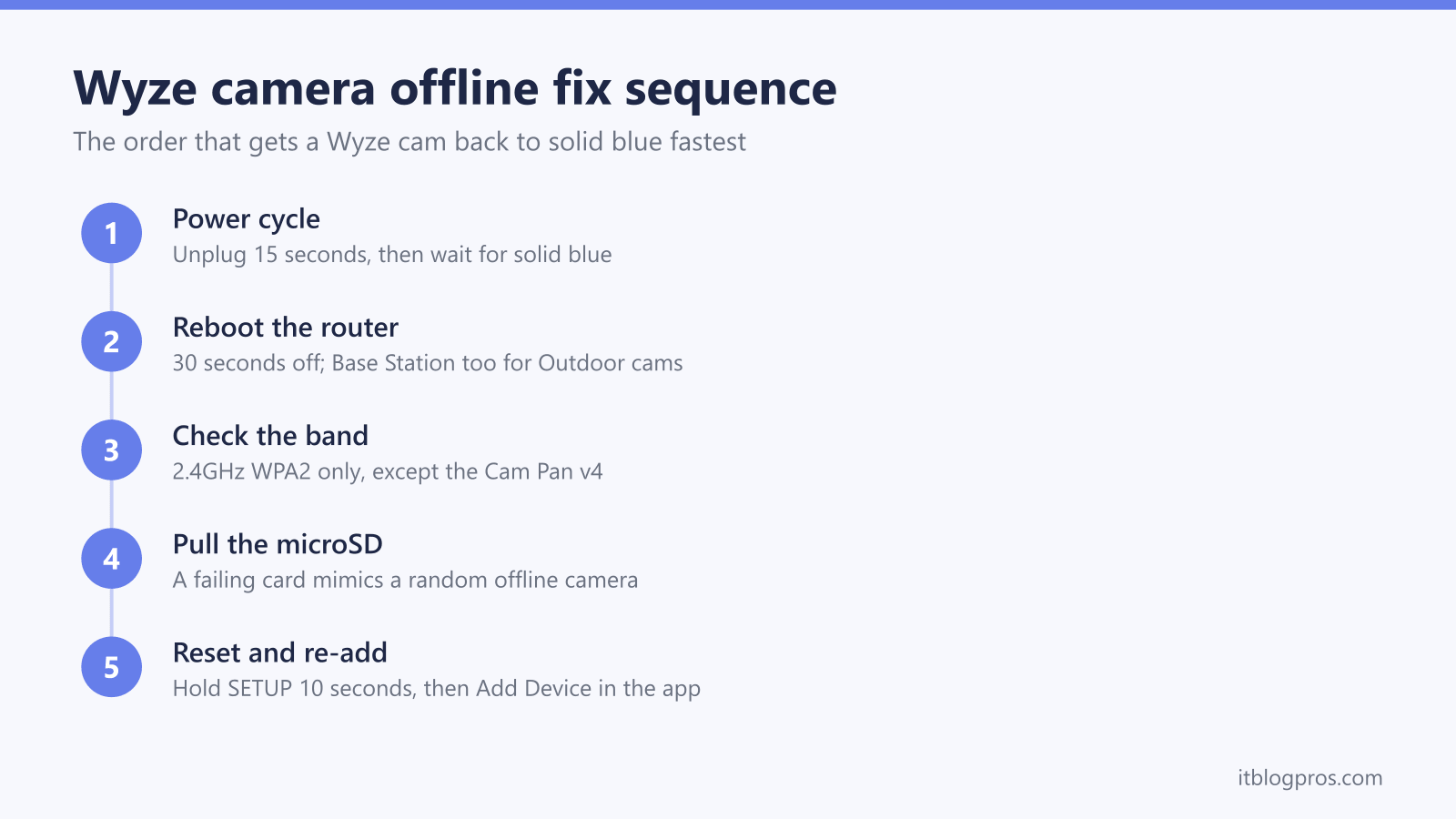
A Wyze camera that shows offline in the app has lost its path to Wyze's servers, and the break can sit in four different places: the camera, your router, your internet connection, or Wyze's own cloud. This guide works through the fixes in the order that clears the most cases fastest, with the exact error code meanings, status light decodes, and per-model reset steps for the Wyze Cam v3, Cam v4, the Pan series, and the Wyze Cam Outdoor with its Base Station.
A Wyze camera shows offline when it loses its link to Wyze's servers, and a power cycle fixes most cases: unplug the camera, wait 15 seconds, and plug it back in. If error 90 or error 27 returns, reboot the router, confirm the camera sits on a 2.4GHz WPA2 network, pull the microSD card, then factory reset and re-add the camera in the Wyze app.
Key Takeaways
- Error 90 means the camera has lost its connection to Wyze's servers, and a 15-second power cycle clears it in most cases.
- Error 27 is a connection timeout between the app and the camera, so force closing the app and rebooting the router comes before touching the camera.
- Wyze's support articles put the Cam v3, Cam v4, Pan v3, and the Outdoor Base Station on 2.4GHz WPA/WPA2 networks only; the Cam Pan v4 is the only model here Wyze lists with 5GHz support.
- A failing microSD card can knock a Wyze cam offline repeatedly, so ejecting the card is a standard step before any factory reset.
- Wyze Cam Outdoor connects through its Base Station rather than your router, so a solid yellow Base Station light means the station itself has lost the network.
Wyze status lights on Cam v3, Cam v4, the Outdoor cam, and Base Station
| Light | What it means | What to do |
|---|---|---|
| Solid red (Cam v3/v4) | The camera has power and is starting up. | Wait 30 seconds. Stuck solid red for minutes means a stalled boot: power cycle, and if it repeats, manually flash the firmware from a microSD card. |
| Flashing red (Cam v3/v4) | Setup mode, ready to connect to Wi-Fi. | Run Add Device in the Wyze app. If this appeared on an already-installed camera, it lost its settings and needs pairing again. |
| Flashing red and blue (Cam v3/v4) | The camera is mid-connection, alternating red and blue while it joins the network. | Wyze's troubleshooting is a power cycle, then setting the camera up again as new if it never reconnects. Re-check the Wi-Fi password, and on a router that combines both bands under one name, split the band names first. |
| Flashing blue (Cam v3/v4) | Connected to Wi-Fi and finishing setup. | Allow a minute. If it never turns solid, check router parental controls or MAC filtering blocking the camera's internet access. |
| Solid blue (Cam v3/v4) | Camera is connected and working properly. | Nothing camera-side. If the app still says offline, force close and reopen the app or test the phone on cellular data. |
| Solid yellow (Base Station) | The Base Station has power but no network connection. | Reseat the Ethernet cable, reboot the router, then unplug the station for 5 to 10 seconds and let it restart. |
| Flashing blue (Base Station) | The Base Station is connecting to the network. | Wait for solid blue. Endless flashing in wireless mode means the 2.4GHz link failed; reconnect via Ethernet and redo the network step. |
| Flashing yellow and blue (Base Station or Outdoor cam) | The station and camera are pairing with each other. | Keep the camera within a few feet of the station until both lights settle solid blue. |
| Solid blue (Outdoor cam) | The camera is powered and connected to its Base Station. | Nothing needed; if the app disagrees, reboot the Base Station first, then the camera. |
| No light (Outdoor cam) | Power saving mode, battery below 20 percent, or the power switch is off. | Flip the rear power switch on and charge with the supplied cable; flashing red means charging and solid red means fully charged. |
An offline Wyze camera has lost its link to the Wyze servers
The Wyze app never talks to your camera directly across the internet; it goes through Wyze's cloud. When the app labels a camera offline, the chain from camera to router to internet to Wyze server has snapped somewhere, and the full message usually reads "Device is offline (error code 90). Please check your internet connection or power cycle the camera."
That gives four suspects, checked cheapest first:
- The camera itself has crashed, lost power, or holds stale Wi-Fi settings.
- The router has dropped the 2.4GHz band, changed its password, or is blocking the camera.
- The internet connection is down, so everything else in the house is offline too.
- Wyze's servers are having an outage, in which case every Wyze device misbehaves at once and no amount of resetting on your side helps.
Before resetting anything, open another device on the same Wi-Fi and load a website. If nothing loads, fix the broadband first. If other Wyze users are reporting the same thing at the same time on the Wyze forum's service status thread, wait it out. Only when your internet works and Wyze's service is healthy is the camera itself worth troubleshooting.
A 15 second power cycle fixes most offline Wyze cameras
Wyze's own error 90 guidance starts with power, because these cameras run a small Linux computer that occasionally wedges and simply needs a clean restart.
- Unplug the camera's power adapter from the outlet, wait 15 seconds, and plug it back in. For a Wyze Cam Outdoor, use the power switch on the back of the camera instead.
- Watch the status light. A wired Wyze Cam boots to solid red, then settles to solid blue once it is back on the network. Two minutes is a normal wait.
- If it will not settle, reboot the router: power it off for 30 seconds and let it fully restart, which takes a few minutes.
- Check the cable and adapter. Wyze recommends the supplied USB cable, and a half-seated micro-USB or USB-C plug at the back of the camera is a genuinely common cause of a camera that dies and "goes offline" at random. Swap outlets if the light stays dark.
If the camera returns for a few hours and then drops again, move on to the sections below rather than repeating the ritual daily; something underneath is failing.
Error 90 and error 27 sit at opposite ends of the connection
Wyze publishes an error code table, and the two codes people actually search split neatly:
- Error 90, device is offline. The camera-to-Wyze-server link is down. This is a camera or router problem: power cycle the camera, reboot the router, check the cable, and if it keeps returning, factory reset and set the camera up again.
- Error 27, connection timed out. The app tried to open a live stream and gave up waiting. This one often lives on the phone side or in a congested network rather than in the camera. Force close the Wyze app and reopen it, switch the phone between Wi-Fi and cellular data to test, then power cycle the camera and reboot the router if the timeout persists.
Three neighbors from the same table help narrow things further: error 41 (network is unreachable) and error 42 (connection failed) point back at your Wi-Fi, while error 60 (server not responding) points at Wyze's cloud rather than anything in your house. A camera that alternates between error 27 and error 90 is almost always sitting on a weak or unstable Wi-Fi signal, so test it next to the router before blaming the hardware.
The 2.4GHz rule applies to every model here except the Cam Pan v4
Going by Wyze's band support and router requirements articles, Wyze Cam v3, Wyze Cam v4, Cam Pan v3, and the Wyze Cam Outdoor Base Station connect only to 2.4GHz Wi-Fi with WPA or WPA2 security. Wyze confirms the Cam v4 deliberately skipped 5GHz because 2.4GHz carries further and penetrates walls better. The one exception in this lineup is the Wyze Cam Pan v4, which has dual-band Wi-Fi and will join 2.4GHz or 5GHz networks.
This rule causes two specific failures:
- Merged-band routers. Wyze's dual-band troubleshooting article says a router that combines 2.4GHz and 5GHz under one name can stop the camera finding and pairing to the 2.4GHz network, and it names ISP gateways such as Xfinity's XB6, XB7, and XB8 and mesh systems such as TP-Link Deco, Google Nest Wifi, eero, and Netgear Orbi as combining bands by default. Its fixes are to give the bands separate names and connect the phone to the 2.4GHz one before setup, to move farther from the router so the phone can join 2.4GHz on its own, or to switch 5GHz off until setup finishes where the router allows it. Wyze says the camera should stay on 2.4GHz after the settings go back.
- WPA3-only security. A network locked to WPA3 will reject these cameras. Set the router to WPA2 or a mixed WPA2/WPA3 mode.
Wyze's article covers Wyze devices only. For smart plugs, bulbs, and doorbells from other makers, check the maker's setup guide for the band the device needs, and the smart plug Wi-Fi connection guide is worth a read if several devices in the house are misbehaving at once.
The status light shows which half of the connection failed
Wyze's indoor wired cameras speak in red and blue, while the Outdoor system speaks mostly in yellow and blue, and the table below decodes each state. Three readings do most of the diagnostic work:
- Solid blue camera, offline app. The camera is fine; the problem is the phone or the Wyze service. Force close the app, check for app updates, and test on cellular data.
- Flashing red on a Cam v3 or v4 that was already set up. The camera has dropped back into setup mode and lost its configuration, so it needs adding again through the app.
- Endless alternating red and blue. Wyze's Cam v3 status light guide lists flashing red and blue as the camera trying to connect to Wi-Fi, with a disconnected network as a possible error state, and Wyze's troubleshooting is a power cycle, then setting the camera up as new if it never reconnects. Before re-adding it, check for a changed Wi-Fi password, a renamed network, or the 2.4GHz band issue above.
On the Wyze Cam v3 the status light sits on the base below the lens; on the Cam v4 it faces you from the front of the camera. The Outdoor Base Station's light is on the front of the white puck, and it is the first light to check for any Wyze Cam Outdoor problem.
MicroSD cards and stale firmware cause repeat offline drops
Two quieter culprits explain cameras that go offline every day or two despite a solid network.
The microSD card. A worn or corrupted card can crash the camera or drag it into a reboot loop, which the app reports as the camera going offline at random. Eject the card, power cycle the camera, and run it for a day. If the dropouts stop, reformat the card from the camera's Advanced Settings in the Wyze app before trusting it again, or replace it with a high-endurance card, since continuous recording wears standard cards quickly. Note that the Cam v3 and Pan models also require the card out before a factory reset, so pulling it early saves a step.
Firmware. Wyze fixes connectivity bugs in firmware regularly. In the Wyze app, check the camera's settings for a firmware update once it is briefly online, and update the app itself from the app store.
A camera too broken to update normally can be recovered with Wyze's manual flash procedure: format a 32GB or smaller microSD card to FAT32, download the firmware for your exact model from Wyze's Release Notes and Firmware page, rename the file exactly as the per-model instructions state, then hold the SETUP button while plugging the camera in. The flash takes up to five minutes and ends with the camera rebooting on its own, which rescues many cameras stuck on a solid red light.
Factory reset details differ between Cam v3, Cam v4, and the Pan series
When power cycles stop sticking, a factory reset plus fresh setup rebuilds the camera's configuration from scratch. The button hold is similar across models, but the details differ enough to matter:
- Wyze Cam v3 and Cam Pan v3: remove the microSD card first, then with the camera powered, press and hold the SETUP button on the bottom for 10 seconds. The light changes to flashing red when the reset takes, and the full process can run up to five minutes.
- Wyze Cam v4: press and hold the SETUP button for 10 to 20 seconds until the camera announces "Ready to connect." The v4's reset does not erase the microSD card, so the card can stay in.
- Wyze Cam Pan v4: remove the microSD card, then hold the SETUP button underneath for 10 to 20 seconds until the light turns red.
After any reset, set the camera up as if new: tap the plus icon in the Wyze app, choose Add Device, pick the camera model, and follow the QR code pairing flow with your 2.4GHz network name and password. There is no need to delete the old camera entry first; re-adding with the same name keeps the camera attached to your existing rules and subscriptions.
Wyze Cam Outdoor troubleshooting starts at the Base Station
The battery-powered Wyze Cam Outdoor never touches your router directly; it talks to the Wyze Base Station, and the Base Station talks to the router. That extra hop changes the whole diagnosis.
Check the Base Station light first. Solid blue means the station is online, and the problem is between station and camera. Solid yellow means the station has power but no network: reseat the Ethernet cable, reboot the router, then unplug the station for 5 to 10 seconds and let it restart to solid blue. A station running in wireless mode adds a wrinkle, because Wyze requires the Ethernet cable for initial setup and only afterwards lets the station switch to a 2.4GHz Wi-Fi connection; if wireless mode keeps failing, plug it back into the router and redo the network step, or just leave it wired for reliability.
If the station is solid blue but the camera stays offline, the camera side has three usual causes: a flat battery or a power switch flicked off (both show as no light at all), the camera sitting past the edge of the station's radio range, or a broken pairing. Charge the camera until the flashing red charging light turns solid red, move it within a few feet of the station, and re-pair it from the Wyze app, watching for the alternating yellow and blue pairing pattern on both devices. Cameras that only drop in bad weather or at maximum range need the station moved closer, since walls eat the link between camera and station just as they eat Wi-Fi.