
A laptop that charges to 80 percent and then sits there showing "plugged in, not charging" looks like a fault, but it almost never is one. On nearly every modern Lenovo, ASUS, Dell, HP and Microsoft Surface machine, an 80 percent ceiling is a built-in battery-conservation feature that the maker switched on, or that you enabled at some point and forgot about. The cap exists to protect the lithium-ion cells, because holding a battery at a full 100 percent charge is the single biggest driver of long-term wear. This guide explains why the limit is there, shows you the exact toggle for each brand, and helps you decide whether to leave it on or unlock full capacity before a trip. It sits under the broader pillar on laptop power and charging problems, so if your machine is shutting down rather than capping its charge, that hub will point you to the right fix.
A laptop stopping at 80 percent is almost always an intentional battery-health feature, not a fault. Lenovo, ASUS, Dell, HP and Surface all ship a charge-limit toggle that protects lithium-ion cells from the wear caused by sitting at 100 percent. Leave it on if the machine mostly stays plugged in, and switch it off in the relevant app or BIOS when you need full runtime for travel.
Key Takeaways
- An 80 percent (or 60 percent) charge ceiling is a deliberate battery-conservation feature on modern Lenovo, ASUS, Dell, HP and Surface laptops, not a hardware fault or a worn-out battery.
- The limit protects the lithium-ion cells, because the top 20 percent of charge causes disproportionate wear, so capping at 80 percent can roughly multiply the number of usable charge cycles.
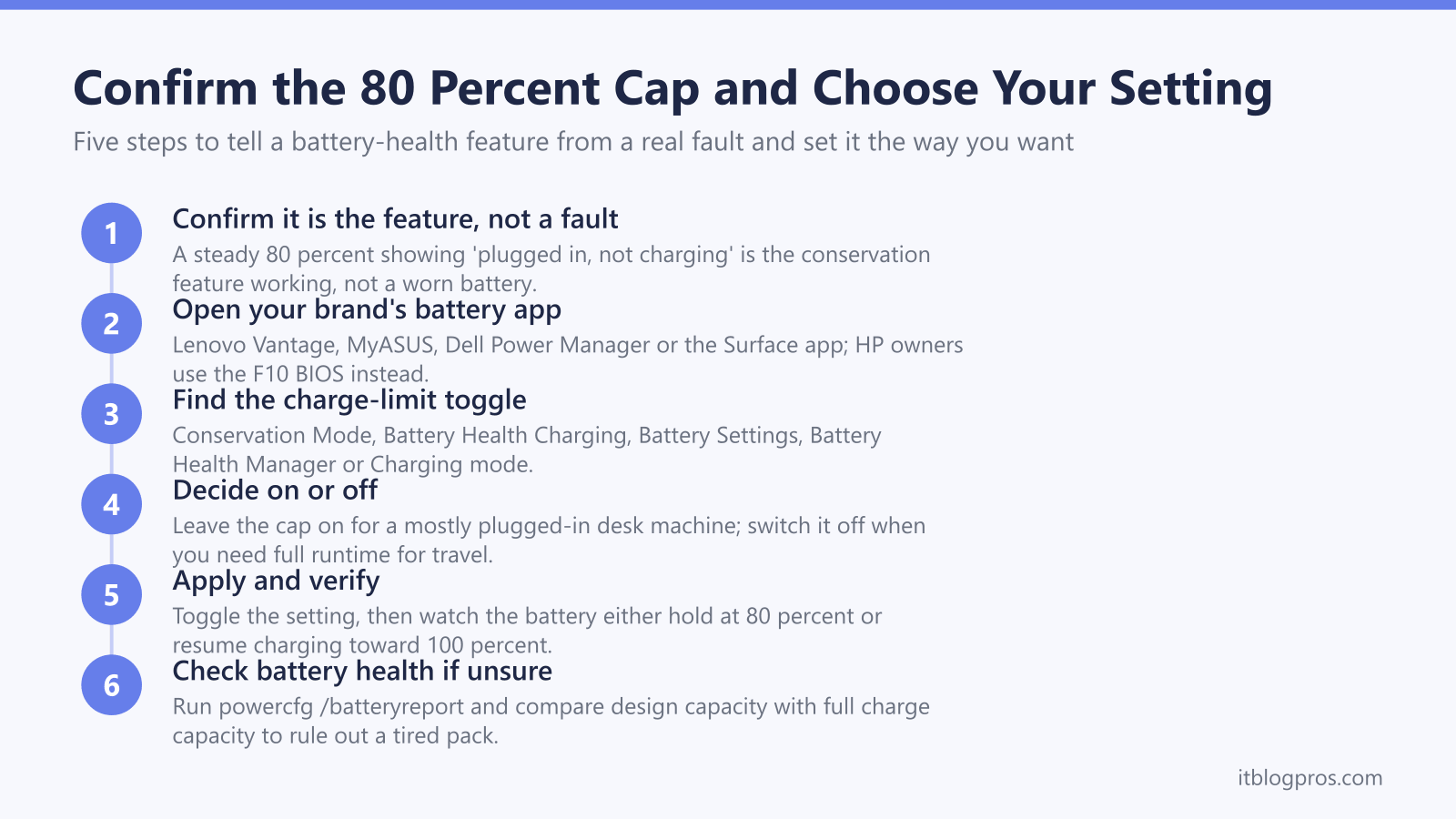
- Each brand exposes the toggle in its own app or firmware: Lenovo Vantage Conservation Mode, MyASUS Battery Health Charging, Dell Power Manager, HP Battery Health Manager in BIOS, and the Surface app for Microsoft devices.
- Leave the cap on if the laptop spends most of its life plugged in at a desk, and switch it off shortly before travel when you need the full battery capacity for a long day away from power.
- A reading of 'plugged in, not charging' alongside a steady 80 percent is the expected, healthy result of the feature working, and a Windows battery report confirms the pack is fine if design and full-charge capacity still match closely.
The 80 Percent Cap Is a Feature That Protects the Battery
Lithium-ion cells age fastest when they are held at a high state of charge. The chemistry behind this is well understood: at 80 to 100 percent, cell voltage is at its highest, which accelerates electrolyte oxidation, gas formation and cathode breakdown inside the pack. The top slice of the charge range does disproportionate damage. Independent cycle testing shows a cell taken to a full 100 percent each time may reach the end of its useful life in around 500 cycles, while the same cell charged only to roughly 75 to 80 percent can last well past 2,000 cycles.
That is why laptop makers added charge-limit features. By stopping at 80 percent, the machine spares the cells the most stressful part of every charge, so the battery holds more of its original capacity years down the line. When you see plugged in, not charging next to a steady 80 percent, the feature is doing exactly what it should. The laptop is running on mains power and simply choosing not to top the pack up to a level that would wear it out faster.
Lenovo Conservation Mode in Vantage
On ThinkPad, IdeaPad, Yoga and ThinkBook machines the feature is called Battery Conservation Mode, and it lives in the Lenovo Vantage app.
- Open Lenovo Vantage (install it from the Microsoft Store if it is missing).
- Go to Device then Power (older builds list it under Hardware Settings then Power).
- Find Battery Conservation Mode and read the toggle state.
With Conservation Mode on, Lenovo caps charging at around 80 percent (some models settle nearer 55 to 60 percent) and runs on AC once the cap is reached. Lenovo does not let you pick a custom percentage through the Vantage interface; the ceiling is preset. If the toggle is on and you want a full charge, switch it off and let the battery top up. One caveat: if Conservation Mode appears to do nothing, check that the Lenovo ACPI-Compliant Virtual Power Controller is present and enabled in Device Manager, because the mode fails silently without it.
ASUS Battery Health Charging in MyASUS
ASUS exposes three named modes through the MyASUS app, which is the clearest implementation of any brand.
- Full Capacity Mode charges all the way to 100 percent, for everyday portable use.
- Balanced Mode charges to 80 percent and resumes only once the pack drops below about 78 percent, suited to mixed desk-and-meeting use.
- Maximum Lifespan Mode holds the battery at 60 percent, intended for machines that live permanently on the charger.
Open MyASUS, go to Customization then Power & Performance, and pick the mode under Battery Health Charging. If your laptop is sitting at 60 or 80 percent and refusing to go higher, you are almost certainly in Maximum Lifespan or Balanced mode. Switch to Full Capacity for a complete charge. ASUS also offers a one-time Instant Full-Charge option that allows a single 100 percent charge before reverting to the limit automatically after 24 hours, which is handy the night before travel.
Dell Power Manager Battery Settings
Dell handles charge limits through Dell Power Manager (or Dell Command | Power Manager on commercial machines). Under Battery Information then Settings you will find several modes:
- Standard charges fully and is the default.
- Primarily AC Use lowers the charge threshold for laptops that stay plugged in, so the pack does not sit at 100 percent.
- Custom lets you set explicit start and stop thresholds, for example start charging at 60 percent and stop at 80 percent.
- Adaptive and ExpressCharge tune behaviour to your usage pattern.
If your Dell is capping below 100 percent, open Dell Power Manager and check which mode is active. The Custom setting is the most precise way to pin the ceiling at 80 percent, and switching back to Standard removes the cap entirely when you need full runtime.
HP Battery Health Manager Lives in the BIOS
HP business and many consumer notebooks bury the control in firmware rather than an app, under HP Battery Health Manager.
- Restart the laptop and tap F10 repeatedly during boot to enter the BIOS Setup Utility.
- Use the arrow keys to select Advanced then Power.
- Find the battery health setting, named Maximize My Battery Health, Maximize Battery Health or Maximize Battery Health Management depending on your model.
With Maximize Battery Health selected, HP limits the pack to 80 percent of its design capacity to slow chemical ageing and reduce the risk of swelling. Note an HP quirk worth knowing: when this setting is active, the Windows tray battery icon can still read 100 percent while the cells are actually held at 80 percent, which confuses many owners. To remove the cap, change the BIOS setting to Maximize Battery Duration or the equivalent full-charge option and save on exit.
Microsoft Surface and Windows 11 Smart Charging
Microsoft Surface devices use two related features. Smart Charging is always running and automatically limits charging to 80 percent when it detects the device has been plugged in for long stretches or is running warm; a small heart icon appears on the battery indicator when it is active. It releases the cap and allows a full charge once the battery falls below 20 percent or the device starts running on battery again.
You can also set the limit manually. In the Surface app, open Battery & charging and under Charging mode choose Limit to 80%, Adaptive or Charge to 100%. Recent firmware brought the 80 percent option to the Snapdragon-powered Surface Pro 11 and Surface Laptop 7. A separate, stronger Battery Limit mode caps charging at 50 percent for devices left plugged in permanently, such as kiosks, and is toggled in the Surface UEFI under Boot configuration then Advanced Options.
Windows 11 itself has no universal native charge-limit slider, so on non-Surface hardware the control always comes from the laptop maker's own app or BIOS described above.
Decide Whether to Leave the Limit On or Switch It Off
The right choice depends on how you use the machine.
Leave the cap on when the laptop spends most of its life on a desk and plugged in. You rarely need more than 80 percent in that scenario, and the battery will hold far more of its original capacity over the years. This is the better default for most desktop-replacement and office machines.
Switch the cap off shortly before you travel or face a long day away from power, then re-enable it when you are back at your desk. ASUS Instant Full-Charge and the Surface Charge to 100% mode are designed exactly for this, giving you one full charge without permanently disabling the protection.
If the laptop is capping low and none of the brand toggles seem to be the cause, the issue may genuinely be a tired pack rather than a feature. Open a command prompt and run powercfg /batteryreport, then compare design capacity with full charge capacity in the generated report. A large gap points to a worn battery, whereas a close match confirms the cells are healthy and the 80 percent ceiling is purely the conservation feature at work. A different symptom entirely is a charge level that falls while the mains lead is still connected, which has its own causes and is covered in the guide to a laptop battery that drains while plugged in.