
The single LED on a Google Nest WiFi router, a Nest WiFi point, or an original Google WiFi puck is the device telling you exactly what state it is in. Solid white means the unit is online and healthy. Pulsing white or pulsing blue means it is booting or waiting to be set up. Amber or orange points to an internet problem, and red signals a fault that usually needs a restart or a factory reset. The colours are the same whether you are in the UK or the US because they are built into the hardware, not the network. This guide maps every colour and pattern to its official Google meaning, then walks through the fixes in the order most likely to clear the fault, including the exact unplug and hold reset method for each model. The light meanings here are drawn directly from Google Nest support so you can trust what each state is telling you.
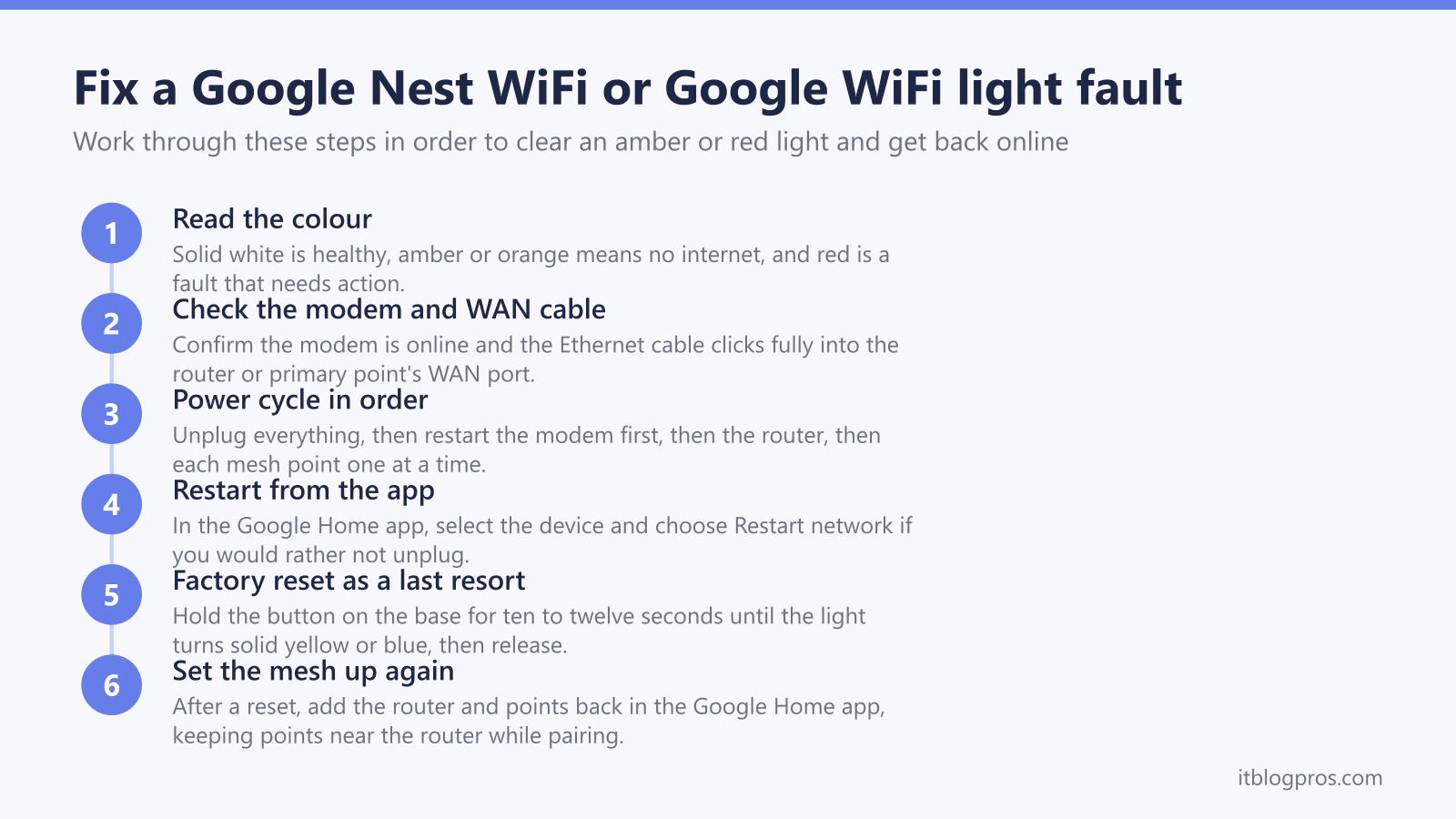
On Google Nest WiFi and Google WiFi, solid white means the device is online and working. Pulsing white or pulsing blue means it is booting or ready for setup. Amber or orange warns of no internet connection, and red signals a fault. A power cycle clears most amber and red states, and a button-hold factory reset is the last resort before reconfiguring the mesh.
Key Takeaways
- Solid white is the healthy state on every Google Nest WiFi router, Nest WiFi point, and Google WiFi puck, confirming the device is online with a working connection.
- Pulsing or slowly pulsing white means the device is booting up or is ready for setup, while pulsing blue means it is ready to be added in the Google Home app.
- Amber, orange, or yellow means there is no internet connection or a network error, so the fault is usually the modem, the WAN cable, or the broadband line rather than the WiFi unit.
- Red, whether solid or pulsing, is a fault or critical failure, and on the Nest WiFi Pro a fast blinking red specifically tells you to factory reset the router.
- The factory reset is a press and hold of the button on the base of the device, held for ten to twelve seconds depending on the model, and it wipes all settings so the mesh must be set up again afterwards.
Google Nest WiFi and Google WiFi light meanings at a glance
| Light | What it means | What to do |
|---|---|---|
| Off (no light) | The device has no power, or the status light has been dimmed or switched off in the Google Home app. | Check the power adapter is firmly plugged in at both ends and the socket is live. If power is fine, open the Google Home app and confirm the device light has not been turned off under its settings. |
| Solid white | The router or point is online and everything is working normally. This is the healthy state on Nest WiFi and Google WiFi. | No action needed. If the network still feels slow, restart the network from the Google Home app and check mesh point placement rather than the light. |
| Slowly pulsing white | The device is booting up or is ready to be set up. On the Nest WiFi point it can also mean the device is starting. | Wait a couple of minutes for it to settle. If it stays pulsing white and never goes solid, run setup in the Google Home app, or power cycle the unit and try again. |
| Fast pulsing white | The device is starting up or installing a software update. On a Nest WiFi point it can also indicate the assistant is active or a notification arrived. | Leave it alone while it updates, which can take several minutes. Do not unplug it during an update or you risk corrupting the firmware. |
| Slowly pulsing blue | On Nest WiFi Pro and Google WiFi this means the device is ready for setup and waiting to be added to your network. | Open the Google Home app and add the device to your home to complete setup. If it will not pair, move it nearer the router during setup. |
| Solid blue | On Google WiFi the unit is factory resetting itself. On other models, solid blue during a reset is the cue to release the button. | Let the reset finish, which can take up to ten minutes. Do not unplug the device while it is solid blue or it may not reset cleanly. |
| Pulsing blue | On a Nest WiFi point this can mean you are receiving a call through the assistant. On Google WiFi it means the point is ready for setup. | For a call, no action is needed. For a Google WiFi point waiting on setup, finish adding it in the Google Home app. |
| Solid amber or orange | On a Nest WiFi point a solid orange glow underneath means the microphone is muted. On Nest WiFi Pro a solid yellow means the router is factory resetting or hit a setup error. | For a muted point, slide the microphone switch back on if you want voice control. For a reset, let it complete; for a setup error, restart the device and try setup again. |
| Pulsing amber or orange | There is no internet connection or a network error. On Google WiFi this is pulsing orange; on Nest WiFi it shows as a slowly pulsing or blinking yellow. | Check the WAN cable from the modem clicks firmly into the router, then power cycle the modem and router. Confirm your broadband line is up by checking the modem lights or asking your ISP about an outage. |
| Solid amber or yellow | On Nest WiFi the router is factory resetting. On Nest WiFi Pro it can indicate a network error during setup. | Allow the reset to finish before touching the device. If it is a setup error, restart the router and the modem, then start setup again from the app. |
| Red (solid or fast blinking) | There is a critical failure or a hardware fault. On Nest WiFi the router shows solid red, on Nest WiFi Pro it fast blinks red, and on Google WiFi the point pulses red. | Power cycle the device first. If red returns, factory reset it using the button on its base. On Nest WiFi Pro a fast blinking red is Google telling you to factory reset; if it persists, the unit may need replacing. |
Owners of a different mesh system need a different chart, because the colours are not shared across brands; the eero light meanings guide covers the white, blue and red states on eero hardware.
Amber or orange means no internet, not a broken router
A pulsing amber, orange, or yellow light is the most common warning people see on Google Nest WiFi and Google WiFi, and it almost always points away from the WiFi unit itself. It means the router or primary point cannot reach the internet, so the fault sits with the modem, the cable between them, or the broadband line. Start at the modem. Confirm its own status lights show a healthy connection, because if the modem is offline the router has nothing to share. Then check the Ethernet cable running from the modem into the WAN port on the Google WiFi router or primary point, making sure the tab clicks fully home, as a half-seated cable is a frequent cause of an amber light. If both look right and the light is still amber, the line itself may be down, so check whether your provider has reported an outage in your area.
A power cycle clears most amber and red states
Before anything more drastic, power cycle the whole chain in order, because this resolves the majority of amber and red faults. Unplug the modem and every Google WiFi device and wait until all the lights go dark. Plug the modem back in first and give it about two minutes to fully come back online. Next plug in the Nest WiFi router or primary Google WiFi point and wait for it to reach solid white. Finally bring any additional mesh points back, one at a time. Doing it in this sequence lets each device get a clean address from the one before it. If you would rather not unplug anything, you can trigger the same effect by opening the Google Home app, selecting the device and choosing Restart network, though a full unplug is more thorough when a red light is involved.
How to factory reset Google Nest WiFi and Google WiFi
A factory reset wipes all settings and is the right move only when a red light persists or the device is stuck and a power cycle has not helped. The button sits on the base of every model. On a Nest WiFi router, hold the button for about ten seconds until the light turns solid yellow, then release and wait while it pulses white to signal completion, which can take up to ten minutes. On a Nest WiFi Pro, hold for twelve seconds; the light flashes yellow then goes solid yellow, at which point you release, and it flashes white before settling on solid blue ready for setup. On an original Google WiFi puck, hold for around ten seconds until the light flashes orange and then turns solid blue, release, and wait for it to pulse blue. Never unplug the power during a reset. Afterwards the mesh has to be set up again from scratch in the Google Home app.
Stuck on pulsing white or pulsing blue during setup
If a device sits on slowly pulsing white or pulsing blue and never reaches solid white, it is waiting to be set up or struggling to join the mesh. First make sure you are completing the add-device flow in the Google Home app rather than expecting it to connect on its own. If pairing keeps failing, move the point much closer to the router for the duration of setup, then relocate it once it is joined, because a weak signal during setup is a common reason it stalls. A unit that loops between pulsing and solid blue and refuses to finish usually needs a factory reset followed by a fresh setup. Confirm too that the router itself is on solid white before adding any points, since a point cannot join a router that has not yet come online.
When it is worth replacing the mesh rather than resetting it again
Google has wound down the Nest WiFi line, and the original Google WiFi in particular is now several years old. If you find yourself power cycling or factory resetting every few weeks, or a unit keeps returning to red after resets, the hardware is likely failing and no amount of resetting will fix it for good. Ageing mesh kit also lags behind current standards, so even when it works it can be the reason a fast broadband package never feels fast. If only the dead zones at the edge of your home are the problem, a wifi extender may be enough and is covered in the comparison of WiFi extenders and mesh systems. If the core kit itself is unreliable, a current mesh such as the TP-Link Deco X50 or the Amazon eero 6 plus restores whole-home coverage on the latest WiFi 6 standard and is usually the more dependable long-term fix. The mesh, extender or new router decider helps you choose between patching the gaps and replacing the system.
Dim or switch off the light without losing the warnings
A bright LED in a bedroom or living room is a common annoyance, and Google lets you dim or turn it off entirely. Open the Google Home app, select the device, go to its settings and adjust the brightness or switch the light off. The trade-off is that with the light off you lose the at-a-glance amber and red warnings, so if you rely on the colour to spot internet drops it is worth dimming the light rather than disabling it completely. The light setting is per device, so you can darken the puck in the bedroom while leaving the router by the modem fully lit.