
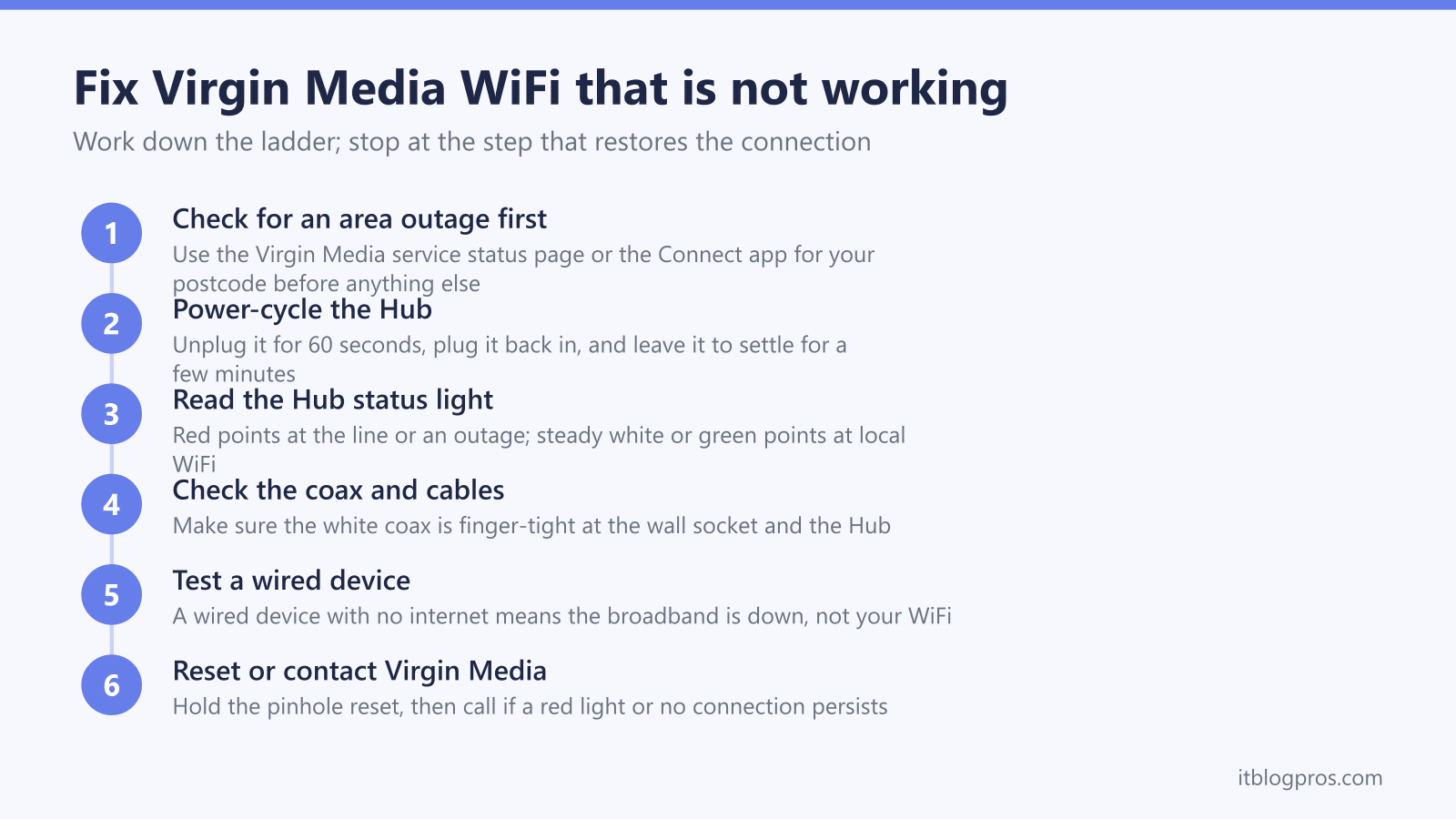
If your Virgin Media WiFi has stopped working, first check for an area outage in the Virgin Media Connect app or status page, then power-cycle the Hub: unplug it for 60 seconds and let it fully reboot. A red or flashing light points to a connection fault; a steady white light with no internet usually means an outage or a single-device issue rather than the Hub itself.
This guide walks you through every step to get your Virgin Media internet back online quickly, from reading the Hub lights to power-cycling and checking for an outage.
Key Takeaways
- You'll learn how to read the status lights on Virgin Media Hub 3, Hub 4 and Hub 5 so you can pinpoint the fault instantly.
- A 30-second power cycle resolves roughly 80% of Virgin Media WiFi problems; we walk through the exact restart sequence.
- Checking the official service-status page by postcode rules out network outages before you waste time troubleshooting your own kit.
- Targeted fixes are covered for the common scenarios; a red light, a hidden network, and being connected with no internet.
- Optimising channels, band steering and placement, plus mesh or extender upgrades, gives you better whole-home coverage and tells you when to call Virgin Media support.
Quick 5-Minute Fix (Works 80% of the Time)
Step 1: Check Your Virgin Media Hub Lights
The lights on your Virgin Media router tell you exactly what's wrong:
Virgin Media Hub 3 Lights:
- White light steady = Everything working perfectly
- Red light steady = No internet connection from Virgin Media
- Red light flashing = Hub is starting up (wait 5 minutes)
- Blue light flashing = Hub is connecting to Virgin Media
Virgin Media Hub 4 Lights:
- White light steady = Internet working normally
- Red light steady = No internet signal from Virgin Media
- Purple light flashing = Hub connecting to Virgin Media network
- Blue light steady = WiFi disabled (press WiFi button to enable)
Virgin Media Hub 5 Lights:
- White light steady = All services working
- Red light steady = Internet connection problem
- White light flashing = Hub starting up or updating
- No lights = Power or hardware issue
Step 2: Power Cycle Your Virgin Media Hub
This fixes 80% of Virgin Media WiFi problems:
- Unplug the power cable from your Virgin Media hub
- Wait exactly 30 seconds (count it out)
- Plug the power cable back in
- Wait 5 minutes for the hub to fully restart
- Check the lights - should be steady white when working
Step 3: Check Virgin Media Service Status
Before troubleshooting further, check if Virgin Media has an outage:
- Visit: https://www.virginmedia.com/help/service-status
- Enter your postcode to check local outages
- Check Virgin Media's Twitter @virginmedia for updates
Advanced Virgin Media WiFi Troubleshooting
Problem: Virgin Media Hub Shows Red Light
What it means: No internet signal from Virgin Media network
Solutions:
- Check all cable connections - ensure coax cable is tight
- Inspect cables for damage - look for bends, cuts, or pet damage
- Try a different coax outlet if you have multiple
- Contact Virgin Media - this is usually a line fault
Problem: WiFi Network Not Showing Up
Quick fixes:
- Press the WiFi button on your Virgin hub (may be disabled)
- Check 2.4GHz vs 5GHz - your device might only see one band
- Move closer to the hub - weak signal might hide the network
- Restart your device - phone/laptop WiFi might be stuck
Problem: Connected to WiFi But No Internet
Step-by-step fix:
- Forget and reconnect to your WiFi network
- Reset network settings on your device
- Try a different device - this shows whether the fault is device-specific
- Check DNS settings - try Google DNS (8.8.8.8)
Virgin Media WiFi Password and Settings
Default Virgin Media WiFi Details
Your WiFi details are on a sticker on your Virgin Media hub:
- Network name (SSID): Usually "VM" followed by numbers
- Password: 8-digit number on the hub sticker
- Admin password: Usually printed separately on sticker
How to Access Virgin Media Hub Settings
- Connect to your Virgin Media WiFi
- Open a web browser
- Go to:
192.168.0.1 - Username:
admin - Password: (check sticker on hub)
Optimize Your Virgin Media WiFi Settings
For Better Performance:
-
Change WiFi Channel:
- Log into hub settings (192.168.0.1)
- Go to WiFi settings
- Change 2.4GHz to channel 1, 6, or 11
- Change 5GHz to channel 36, 44, 149, or 157
-
Enable Band Steering:
- Combines 2.4GHz and 5GHz into one network name
- Devices automatically connect to the best band
- Found in Advanced WiFi settings
-
Update Firmware:
- Check for hub updates in settings
- Virgin Media pushes updates automatically
- Restart hub after any updates
When Virgin Media WiFi Keeps Cutting Out
Common Causes and Fixes
Overheating Hub:
- Move hub to open area with ventilation
- Clean dust from vents with compressed air
- Don't stack other devices on top
WiFi Interference:
- Move hub away from microwaves, baby monitors
- Try different WiFi channels (1, 6, 11 for 2.4GHz)
- Use 5GHz band when possible (less congested)
Too Many Connected Devices:
- Virgin hubs support 50+ devices but performance degrades
- Disconnect unused devices
- Consider upgrading to mesh WiFi system
Upgrade Your Virgin Media WiFi Performance
Best WiFi Extenders for Virgin Media
If your Virgin Media hub doesn't cover your whole home:
Budget Option: A Plug-In WiFi Extender
- Covers additional 1,200 sq ft
- Works with all Virgin Media hubs
- Easy setup with WPS button
An extender is the cheapest patch, but for reliable whole-home coverage we'd point you to the value mesh option below; it removes dead zones rather than just rebroadcasting a weak signal.
Premium Choice: A Mesh-Capable Extender
- AC2200 speeds with mesh technology
- Covers up to 2,300 sq ft additional
- Advanced features like beamforming
If you need this much extra coverage, a proper mesh system is the better buy; see our verified mesh picks below for whole-home performance.
Best Mesh WiFi Systems for Virgin Media
For whole-home coverage that's better than extenders:
Best Overall: Amazon eero Pro 6E Mesh System
- Replaces Virgin Media hub WiFi completely
- Covers up to 6,000 sq ft with 3-pack
- Works perfectly with Virgin Media internet
Check the eero Pro 6E price on Amazon UK →
Budget Mesh: TP-Link Deco X20 3-Pack
- Excellent WiFi 6 value for money
- Covers 4,500 sq ft
- Easy setup and management
Check the TP-Link Deco X20 price on Amazon UK →
Virgin Media Hub Models Comparison
Virgin Media Hub 3 (Older Model)
- WiFi: AC1750 (802.11ac)
- Ports: 4x Gigabit Ethernet
- Coverage: Up to 1,500 sq ft
- Best for: Small homes, basic internet use
Virgin Media Hub 4 (Current Standard)
- WiFi: AC2600 (802.11ac)
- Ports: 4x Gigabit Ethernet + 1x USB
- Coverage: Up to 2,000 sq ft
- Best for: Most homes, multiple devices
Virgin Media Hub 5 (Latest Premium)
- WiFi: AX2700 (WiFi 6)
- Ports: 4x Gigabit Ethernet + 1x USB-C
- Coverage: Up to 2,500 sq ft
- Best for: Large homes, many connected devices
Contact Virgin Media Support
When to Call Virgin Media
Call Virgin Media (150 from Virgin Mobile, 0345 454 1111 from other phones) if:
- Red light persists after power cycling
- Service status shows no outages but you have no internet
- Physical damage to cables or hub
- Speed is consistently much slower than your package
Before You Call
Have ready:
- Your Virgin Media account number
- Hub model number (on sticker)
- Description of the lights showing
- When the problem started
- What you've already tried
Virgin Media Online Support
- My Virgin Media app - Check outages, restart hub remotely
- Online chat - Available 24/7 on virginmedia.com
- Twitter - @virginmedia responds quickly to issues
Frequently Asked Questions
Q: Why does my Virgin Media WiFi keep disconnecting? A: Usually caused by overheating hub, WiFi interference, or too many connected devices. Try moving the hub to a ventilated area and disconnecting unused devices.
Q: How do I make my Virgin Media WiFi faster? A: Use 5GHz band when possible, optimize WiFi channels, update hub firmware, and consider a mesh system for larger homes.
Q: Can I use my own router with Virgin Media? A: Yes, but you must keep the Virgin hub in "modem mode." Most users get better results with mesh systems that work alongside the Virgin hub.
Q: What's the range of Virgin Media WiFi? A: Hub 3: ~1,500 sq ft, Hub 4: ~2,000 sq ft, Hub 5: ~2,500 sq ft. Range depends on walls, interference, and number of connected devices.
Q: Why is Virgin Media WiFi slow at night? A: Network congestion during peak hours (7-11 PM). This is normal and should improve after 11 PM. Consider upgrading to a higher speed package if consistently slow.
Video Guide: Virgin Media WiFi Troubleshooting
For visual learners, watch our complete Virgin Media troubleshooting guide where we demonstrate each step with real Virgin Media hubs.
📺 Watch: Virgin Media WiFi Fix Guide
See exactly how to troubleshoot Virgin Media hubs with step-by-step demonstrations for Hub 3, 4, and 5 models.
Watch the Full Video Guide →Summary: Virgin Media WiFi Quick Fixes
- Check hub lights - tells you exactly what's wrong
- Power cycle hub - fixes 80% of issues
- Check Virgin Media service status - rule out outages
- Optimize WiFi settings - channels, band steering, placement
- Consider mesh upgrade - for whole-home coverage
Most Virgin Media WiFi problems are solved with a simple restart. If issues persist, the problem is usually with Virgin Media's network rather than your equipment.
Having Virgin Media issues? Need help choosing WiFi equipment? Email us at [email protected] and we'll help you get connected.