
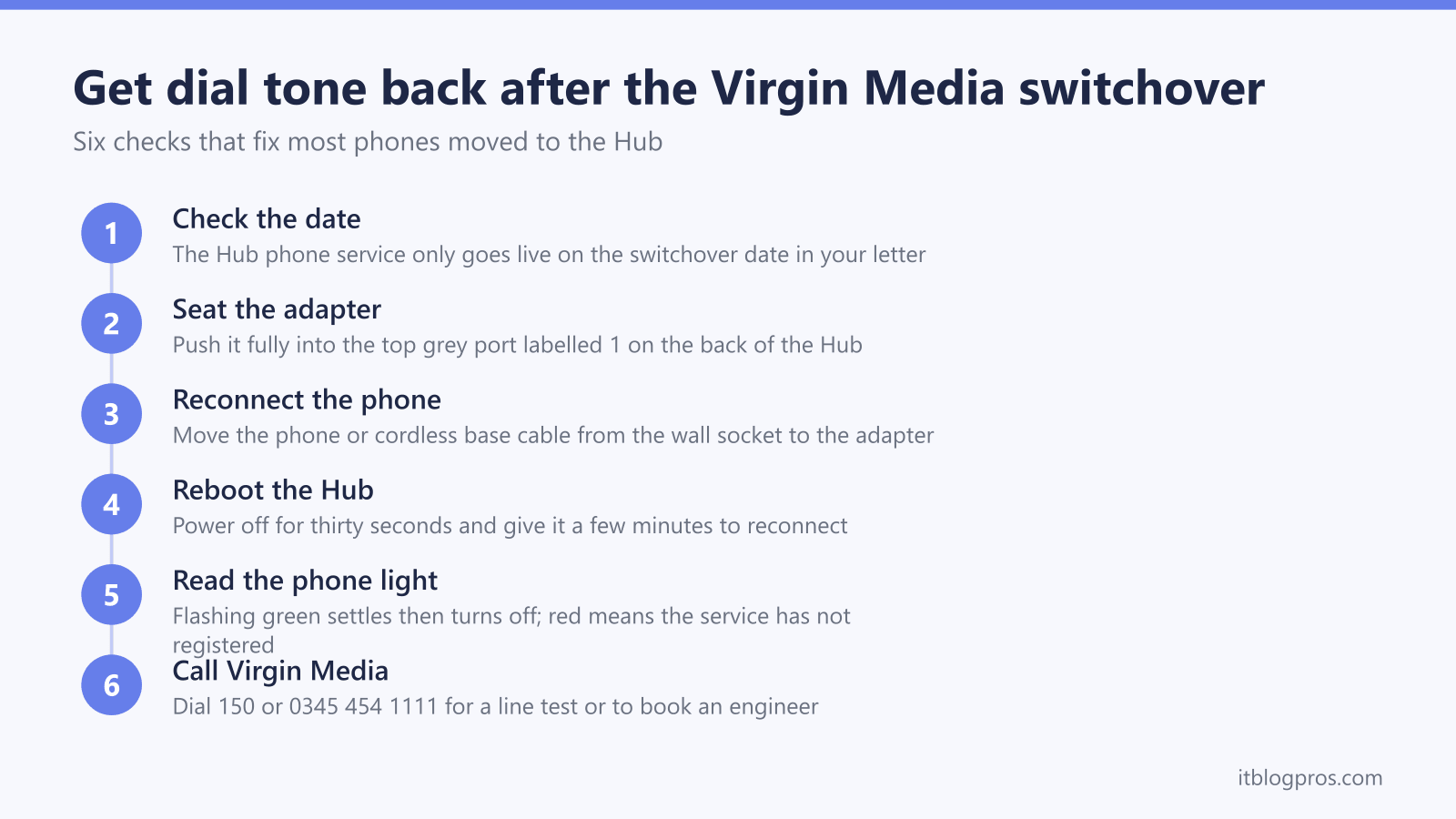
Virgin Media is retiring its old copper phone network, and on switchover day your home phone stops working through the wall socket and starts working through the Hub instead. The change trips people up in the same handful of ways: the supplied adapter is not seated properly, the phone is plugged into the wrong port, the switchover date has not actually arrived, or the Hub needs a reboot before the phone service registers. This guide walks through each fix in order, explains what the phone light on each Hub model is telling you, covers the dead wall sockets and extension wiring the switchover leaves behind, and sets out the engineer installs and Emergency Backup Line that Virgin Media provides for telecare users and vulnerable customers.
A Virgin Media home phone that died after the switchover usually needs three checks: confirm your switchover date has arrived, push the supplied adapter fully into the top grey port labelled 1 on the back of the Hub, and plug the phone cable from the old wall socket into that adapter. Reboot the Hub, wait a few minutes, then listen for dial tone and make a test call.
Key Takeaways
- Virgin Media now delivers home phone service through the Hub, so from switchover day the phone must plug into the supplied adapter in the top grey port labelled 1 on the back of the Hub, not the old wall socket.
- Most silent lines come down to three checks: the switchover date in the letter has actually arrived, the adapter is pushed fully into port 1, and the phone or cordless base station cable clicks firmly into the adapter.
- A Hub reboot clears most remaining faults; on a Hub 3 the phone icon flashes green and then turns off once the service registers, while a persistent red light on any Hub means the fault needs attention.
- Old wall sockets and hardwired extensions go dead after the switchover, so a cordless multi-handset phone at the Hub or a free Virgin Media engineer visit replaces extension wiring.
- Telecare users, customers over 75, people with accessibility needs and anyone without a mobile can ask Virgin Media for a free engineer install and an Emergency Backup Line that keeps 999 calls working in a power cut.
Virgin Media Hub phone light meanings after the switchover
| Light | What it means | What to do |
|---|---|---|
| Flashing green (Hub 3 phone icon) | The Hub is registering the phone service after being switched on or rebooted | Normal during startup. Leave the Hub for a few minutes, then lift the handset and check for dial tone. |
| Solid green then off (Hub 3 phone icon) | The phone service registered correctly; the icon glows for a few minutes and then turns off, which is the normal running state | Nothing to fix. A dark phone icon on a Hub 3 means the line is working, not that it is disconnected. |
| Red or stuck on (Hub 3 phone icon) | The Hub cannot register the phone service | Reseat the adapter in port 1 and the phone cable, reboot the Hub, and call Virgin Media on 0345 454 1111 if the light stays red. |
| Flashing red (Hub 4 and Hub 5) | A fault on the Hub or the service that has not cleared | Check the cables and reboot the Hub. If the red flashing continues, run a service test through Virgin Media or book an engineer. |
The switchover moves your landline from the wall socket to the Hub
Virgin Media calls the change the Digital Voice switchover. Instead of running through the old copper phone wiring, calls now travel over your broadband connection, and the phone plugs into the back of the Virgin Media Hub. Before your switchover, Virgin Media sends a letter with your switchover date and step-by-step instructions, along with an adapter in the post, because most UK phones have a standard BT-style plug and the Hub phone port takes a smaller connector.
The key point in that letter is easy to miss: once your switchover date passes, the old home phone wall socket and anything still connected to it stops working. A phone that rang happily on Monday and sits silent on Tuesday has not necessarily developed a fault. It is simply still plugged into a socket that Virgin Media has switched off. Your phone number stays the same through the change, your existing handsets keep working, and nothing about your call plan changes. The only thing that moves is the socket the phone lives in.
Check the switchover date before assuming a fault
The phone service through the Hub only goes live on the switchover date printed in your letter. Plugging the adapter and phone into the Hub early produces exactly the symptom that sends people hunting for faults: a completely silent line with no dial tone. That silence is expected behaviour before the date, not a problem to fix.
The reverse situation matters too. If your switchover date has passed and the phone is still plugged into the old wall socket, moving it to the Hub is the fix, because the wall socket is now dead. Dig out the letter and confirm which side of the date you are on before touching anything else. If the date has arrived, the phone is connected to the Hub and there is still no dial tone, work through the physical checks next. Keep the letter somewhere safe afterwards, since it also lists the support options for anyone who needs help completing the move.
Reseat the adapter and use the top grey port labelled 1
Virgin Media's official setup is short but precise. Plug the supplied adapter into the top grey phone port, labelled 1, on the back of the Hub. Then unplug the phone line cable from the old wall socket and plug it into the adapter. For a corded phone that means the cable from the phone itself. For a cordless phone it means the cable from the base station, and every other cordless handset in the house keeps working through that base as normal.
When the phone stays silent, the adapter is the first suspect. Pull it out and push it firmly back into port 1 until it seats fully, then do the same with the phone cable going into the adapter. A connector that looks in but has not clicked home is the single most common cause of a dead line on switchover day. Check you are in the port labelled 1 rather than the second phone port, since Virgin Media's instructions specify the top grey port for a standard single-line service. Once everything is seated, lift the handset and listen for dial tone, then make and receive a test call.
Reboot the Hub and read the phone light
If the adapter and cable are seated and the line is still dead, reboot the Hub. Switch it off at the power switch or the mains, wait about thirty seconds, and switch it back on. The Hub can take a few minutes to reconnect, and the phone service registers as part of that process, so give it time before testing again.
The lights tell you how the registration went. On a Hub 3 the phone icon flashes green while the service starts up, glows steadily for a few minutes and then turns off completely, which is the normal running state. A phone icon that lights up red or stays lit is the Hub telling you it cannot register the phone service. On a Hub 4 or Hub 5 there is no separate phone icon to watch, but a light that keeps flashing red after a reboot means a fault that needs attention. The table below decodes the states, and our Virgin Media Hub lights guide for all models covers every other colour the Hub can show. Remember the dependency chain as well: the phone runs over broadband, so if the internet itself is down, fix that first using our guide to Virgin Media WiFi not working.
Calls failing in one direction have their own fixes
A line with dial tone that misbehaves in one direction points away from cabling. If you can make calls but some people cannot reach you, check whether Anonymous Caller Rejection is switched on, because Virgin Media notes it blocks incoming calls from withheld numbers, and callers on switchboards or with privacy settings often show as withheld. Reviewing your call-blocking settings clears most one-way problems.
If the line seems dead but the Hub lights look healthy, suspect the handset before the service. Try a different phone in the adapter if you have one, and check a cordless base station has power, since cordless phones need mains electricity as well as a line. Two setup quirks are worth knowing. The phone port keeps working when the Hub runs in modem mode with your own router, so that arrangement does not break the landline. The phone does stop working whenever the Hub is switched off, so a Hub that gets powered down overnight takes the landline down with it. If you want to check or change settings while investigating, our Virgin Media Hub login guide shows the way in.
Wall sockets and wired extensions stop working after the switchover
The switchover retires your old master socket and every extension socket wired from it. A phone upstairs that plugged into an extension socket has no route to the new service, because the Hub is now the only live phone connection in the house. This catches out homes with a phone in the hallway, another in the bedroom and a third in the study, all fed by wiring that went quiet on switchover day.
The practical answer for most households is a cordless multi-handset phone. One base station plugs into the Hub adapter and the extra handsets sit anywhere in the house on their own charging cradles, needing only a power socket each. No new wiring is involved. If you rely on wired extensions and a cordless set does not suit, tell Virgin Media before or after your switchover date, because the switchover letter specifically asks customers with wired phone extensions to get in touch so the right support can be arranged. Virgin Media can also send an engineer, for free, to bring the Hub and the phone closer together when they currently live in different rooms.
A cordless set already in the house needs no replacement. Virgin Media's switchover page says only the base station of a set that wirelessly controls several handsets needs connecting to the Hub, and that homes with separate base stations wired back to the phone socket need an engineer appointment. Buying only makes sense where the other rooms relied on corded phones plugged into extension sockets, because those sockets stay dead however well the adapter is seated. A two handset DECT set then puts one handset beside the Hub and a second in the room that lost its extension, and the VTech EA5051 is one such set, which VTech's Amazon listing describes as a 2-handset pack with an answering machine.
Three sets that each come with two handsets:
| Product | Best for | Key specs | Price | |
|---|---|---|---|---|
 | VTech EA5051 Answering machine | A handset by the hub and a second upstairs | 2 handsets, answering machine, call blocker | Check price → |
 | BT Premium Phone, twin pack Call blocking | Screening nuisance calls on a busy landline | 2 handsets, answer machine, call block button | Check price → |
 | Gigaset A694 Duo Large display | Easy-to-read screens and keypads | 2 handsets, large high-contrast display, call blocking | Check price → |
Engineer installs protect telecare and accessibility needs
Virgin Media does not expect everyone to self-install. The switchover letter asks you to call 150 from a Virgin Media phone, or 0345 454 1111 from any other phone, if any of the following apply: you rely on a telecare or emergency alarm device such as a health pendant, you are over 75, you have accessibility needs, you have no mobile phone to fall back on in an emergency, you use a text relay service, you cannot position your home phone near the Hub, or you depend on wired phone extensions. In those cases Virgin Media arranges the support needed, including an engineer installation, rather than leaving the job to a posted adapter.
Telecare users have one extra job. Personal alarms and careline pendants were designed for the old analogue line, and some models misbehave on a digital line, so contact your alarm provider about the switchover as well, and tell any visiting engineer about the alarm so it can be tested before they leave. Getting the alarm tested on the new line matters far more than getting the phone working quickly.
The Emergency Backup Line keeps 999 available in a power cut
A phone plugged into the Hub needs the Hub to be powered and the network to be up, so a standard setup cannot make calls during a power cut. Virgin Media's answer for people at risk is the Emergency Backup Line, provided at no extra cost to customers who depend on their landline: disabled customers, people with a long-term illness or accessibility needs, and anyone without a mobile phone.
The Emergency Backup Line connects to your setup and switches itself to the mobile network using a built-in SIM whenever the power or the Virgin Media network fails, so 999 and calls to family keep working. Its battery lasts around eight hours on standby and gives about one hour of talk time off the mains, and Virgin Media advises keeping it plugged in at all times so it stays charged. Ask for one on 150 or 0345 454 1111 if you qualify and were not offered one during the switchover. The wider rules on what providers must offer landline-dependent customers are covered in our guide to digital landline power cut rules.
Virgin Media runs a line test when the fixes fail
If the date is right, the adapter is seated in port 1, the Hub has rebooted and the line is still dead, hand the problem to Virgin Media. Call 150 from a Virgin Media phone or 0345 454 1111 from a mobile, and the team can run a test on the connection, check for faults in your area and book an engineer if the line needs one.
One hardware caveat is worth checking before that call. The oldest Virgin Media routers, the Super Hub 1, Super Hub 2 and Super Hub 2ac, need replacing before the phone service can move across, and Virgin Media swaps them for a current Hub at no cost. If your equipment predates the Hub 3, the missing dial tone is a hub upgrade conversation rather than a wiring problem. Customers with anything Hub 3 or newer already have the phone port the service needs, and for those hubs the fault will almost always be the adapter, the date, the handset or a service issue that the line test can confirm.